
Blog
Convert PDF to Excel Without Broken Tables
 Sik Yang · Feb 5, 2026
There’s a reason PDFs are the go-to format for contracts, financial reports, and business documents: the layout is fixed, so everyone sees exactly the same thing.
However, for professionals and analysts who need to reprocess data, PDFs often feel restrictive.
When converting table-heavy documents such as financial statements, sales and inventory lists, or statistical reports from PDF to Excel, issues like misaligned columns, merged cells, and numbers being converted to text are extremely common. These problems go beyond simple inconvenience and can directly threaten data accuracy and integrity.
This article explains the structural reasons why tables break during PDF to Excel conversion and provides practical solutions you can apply immediately, from free tools to advanced Excel features.
The Fundamental Limits of PDF Data: Why Conversion Can Never Be Perfect
The difficulty of converting PDF to Excel does not come from weak tools. It comes from the structural nature of the PDF format itself.
Visual Coordinate Rendering vs. Logical Grid Structure
PDF files do not store data as rows and columns.
Instead, they are built using coordinate-based graphic instructions that say, “Draw this character at this exact position.”
For example, what looks to us like “10,000 in row 2, column 3” is actually stored in a PDF as: “Place ‘1’, ‘0’, ‘,’, ‘0’, ‘0’, ‘0’ sequentially at X = 100, Y = 250.”
Excel, by contrast, is strictly based on a logical grid structure of rows and columns.
As a result, the PDF to Excel conversion process relies on heuristics—guessing which characters belong to the same row or column based on spacing and alignment. When these guesses fail, the familiar problem of broken tables after PDF to Excel conversion occurs.
Encoding Issues and Invisible Control Characters
Depending on how the PDF was created—ERP systems, accounting software, scanners, or screen-capture tools—hidden characters such as non-breaking spaces, tabs, or special line breaks may be embedded between text elements.
When these characters are imported into Excel, they often cause:
- Numbers to be recognized as text
- Unexpected line breaks inside cells
- Formula errors such as #VALUE!
These are classic Excel formatting issues after conversion, especially common in accounting and financial data.
A Critical Pre-Check: Text PDF vs. Scanned PDF
The first step to successful conversion is identifying the type of PDF.
If this step is skipped or misjudged, even the best tools will produce disappointing results.
Text-Based PDF (Native PDF)
PDFs created digitally from Word, Excel, ERP systems, or accounting software.
Characteristics
- Text can be selected with a mouse
- Search works using Ctrl + F
Conversion Strategy
- Use Excel’s built-in features or advanced conversion tools
- Structure retention rates of over 90% are often achievable
Image-Based or Scanned PDF
PDFs created by scanning paper documents or saving screenshots as PDF files.
Characteristics
- Text cannot be selected
- Search does not work (the computer recognizes it as an image)
Conversion Strategy
- OCR (Optical Character Recognition) is mandatory
- OCR accuracy directly determines final data quality
This distinction is crucial when dealing with scanned PDF to Excel conversions.
The 3 Most Common Table Breakage Issues in Real-World Work
1. Column Misalignment and Data Shifting
When empty cells exist, conversion engines may ignore them and pull subsequent values forward, shifting entire columns. Any totals or comparisons performed afterward can result in critical errors.
2. Excessive Cell Merging
In an attempt to visually replicate the PDF layout, Excel may merge dozens of cells into one. This makes filtering, sorting, and pivot table usage nearly impossible.
3. Data Type Confusion
Commas, currency symbols, and parentheses often cause numeric values to be recognized as text, breaking formulas across the sheet. This problem occurs frequently in financial and accounting data.
How to Convert PDF to Excel: Solutions by Skill Level
From free tools to advanced features, here are practical options depending on your experience level and data complexity.
Beginner: Using Microsoft Word as a Bridge

This is one of the most cost-effective methods available, requiring no additional installation. Word’s PDF Reflow engine is particularly strong at reconstructing table structures.
How
- Open the PDF file in Microsoft Word
- Confirm the “Convert to an editable document” message
- Review the generated tables and copy them into Excel
Key Features
- No additional tools required
- Relatively stable recovery of visual table layouts
Intermediate: Free OCR Using Google Docs
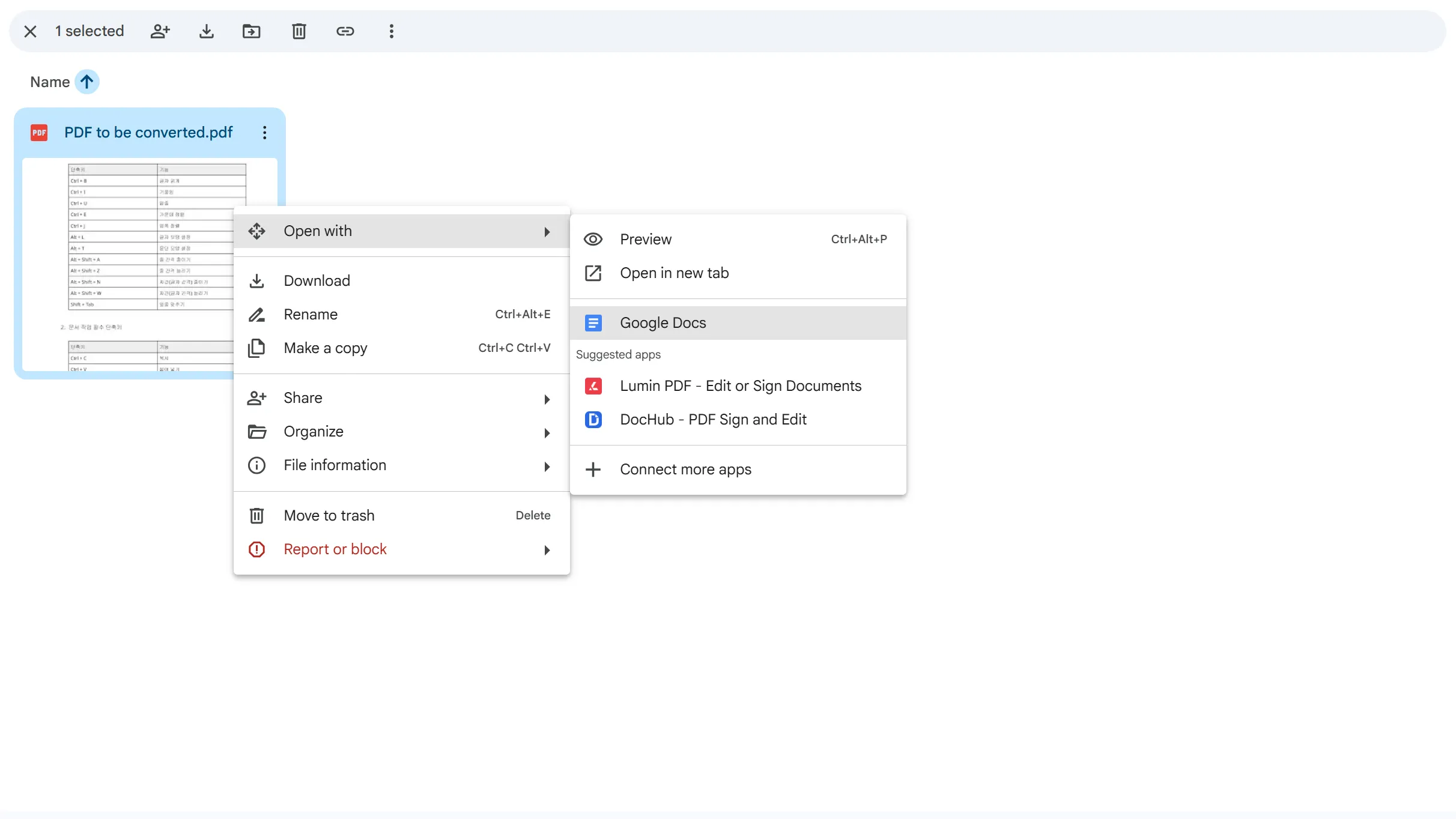
This is the most practical free option for converting scanned or image-based PDFs to Excel. Rather than aiming for perfection, this method works best as a starting point for further data cleanup.
How
- Upload the PDF to Google Drive
- Right-click the file → Open with → Google Docs
- Review the OCR output and copy it into Excel for cleanup
Key Features
- Strong recognition accuracy for Korean text
- Handles complex fonts relatively well
Advanced: Excel Power Query
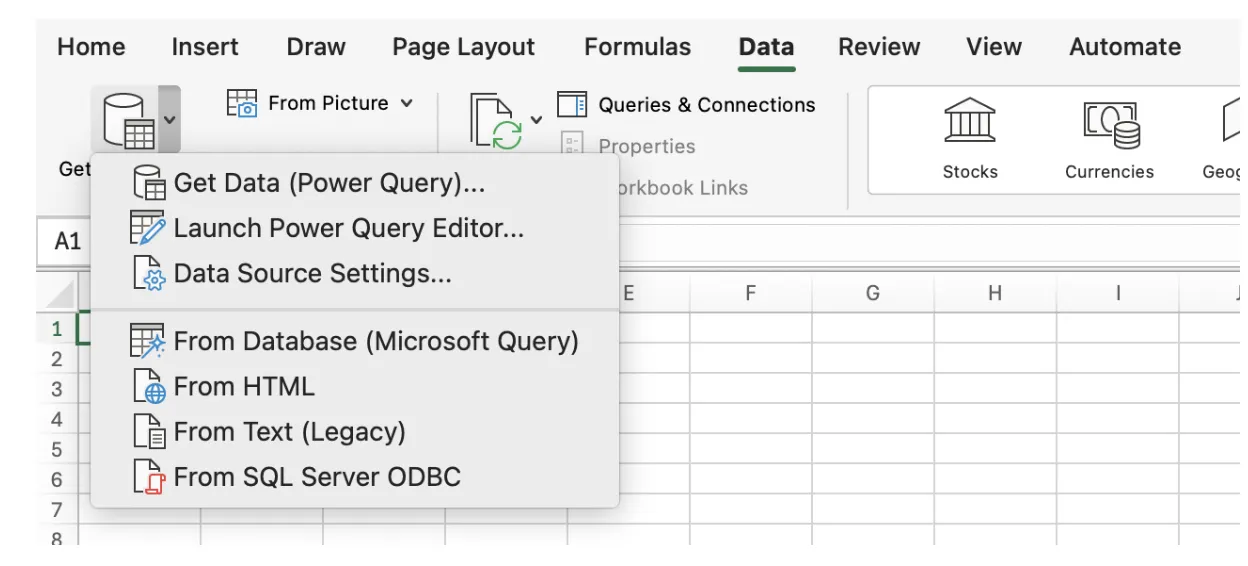
For professionals who regularly process PDF data, Power Query is essential. It has been included by default in Excel versions 2016 and later.
How
- Go to Data → Get Data → From File → From PDF
- Select the PDF file to preview available tables
- Choose the required tables and click Transform Data
- Clean the data by splitting columns, changing data types, and removing extra spaces
- Click Close & Load to import the cleaned data into Excel
Key Features
- Select specific tables within a PDF
- Automate transformation rules for repeated use
Final Data Integrity Checklist
- Confirm that numeric values are not stored as text
- Remove invisible spaces using TRIM and CLEAN
- Unmerge cells and fill empty values
- Compare totals between the original PDF and the Excel file
This final validation step helps ensure that the converted data is accurate and reliable.
Understanding Data Structure Matters More Than Tools
Converting PDF to Excel is not just a file conversion—it is the process of reconstructing fixed visual information into analyzable data.
Rather than relying on a single “perfect” tool, combining Word, Google OCR, and Power Query based on document type delivers the highest efficiency and accuracy.
When dealing with large volumes of data or accuracy-critical work, professional OCR or paid solutions may be more cost-effective than extensive manual correction.

Work More Efficiently in Excel with Cicely AI
After converting PDF to Excel, the most time-consuming part is usually data cleanup. Fixing broken columns, correcting numeric formats, and removing hidden characters can take longer than the conversion itself.
Cicely AI is a desktop-native AI coworker built for spreadsheet workflows. Instead of manually checking each column, you can describe what you need in plain English, such as:
"Fix numbers stored as text in this sheet."
"Split this merged column into separate fields."
"Clean hidden characters and standardize formats."
Cicely reviews your worksheet structure and guides you through practical cleanup steps. Everything runs locally on your PC. No file uploads. No browser tools.