
Blog
Complete Guide to Auto Filter & Advanced Filter
 Mike Yi · Jan 18, 2026
When working with data in Excel, there are many situations where you only want to see specific rows that meet certain conditions.
The feature most people turn to first is the Excel Data Filter.
However, in real-world use, many users run into problems such as filters not applying correctly, unexpected results when using multiple column filters, or sorting becoming distorted after filters are removed.
In this guide, we cover everything in one place: how to apply Excel filters, how to use multiple column filters, the differences between Auto Filter and Advanced Filter, and the most common reasons Excel filters don’t work, along with clear solutions.
What Is an Excel Data Filter?
An Excel data filter displays only the rows that meet specific conditions while hiding the rest.
Importantly, applying a filter does not delete or modify the original data.
Using Excel filters makes it easy to:
- View data for a specific department or owner
- Check transactions above a certain amount
- Extract data within a specific date range
Compared to sorting, which changes the order of data, filtering simply limits which data is shown on screen.
How to Apply Excel Filters
How to Use Auto Filter (Basic Method)
The most commonly used method in Excel is Auto Filter.
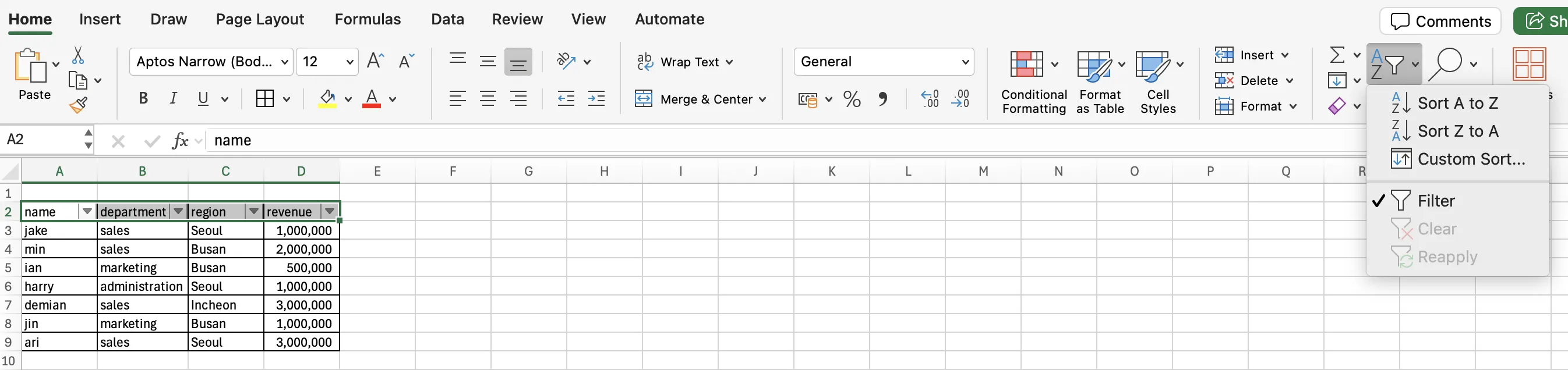
Steps
- Click any cell within the data range.
- Go to Data → Filter (or press Ctrl + Shift + L).
- Filter dropdown arrows (▼) will appear next to each column header.
How to Apply Filters to Multiple Columns
When you apply filters to multiple columns in Excel, all conditions work as AND conditions.
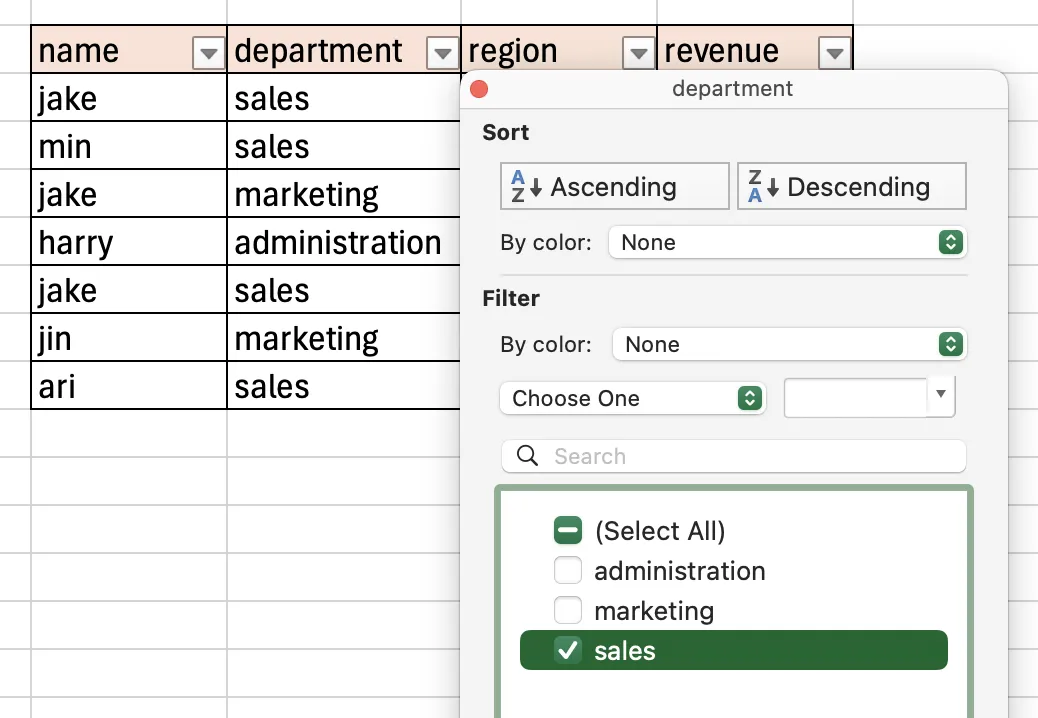
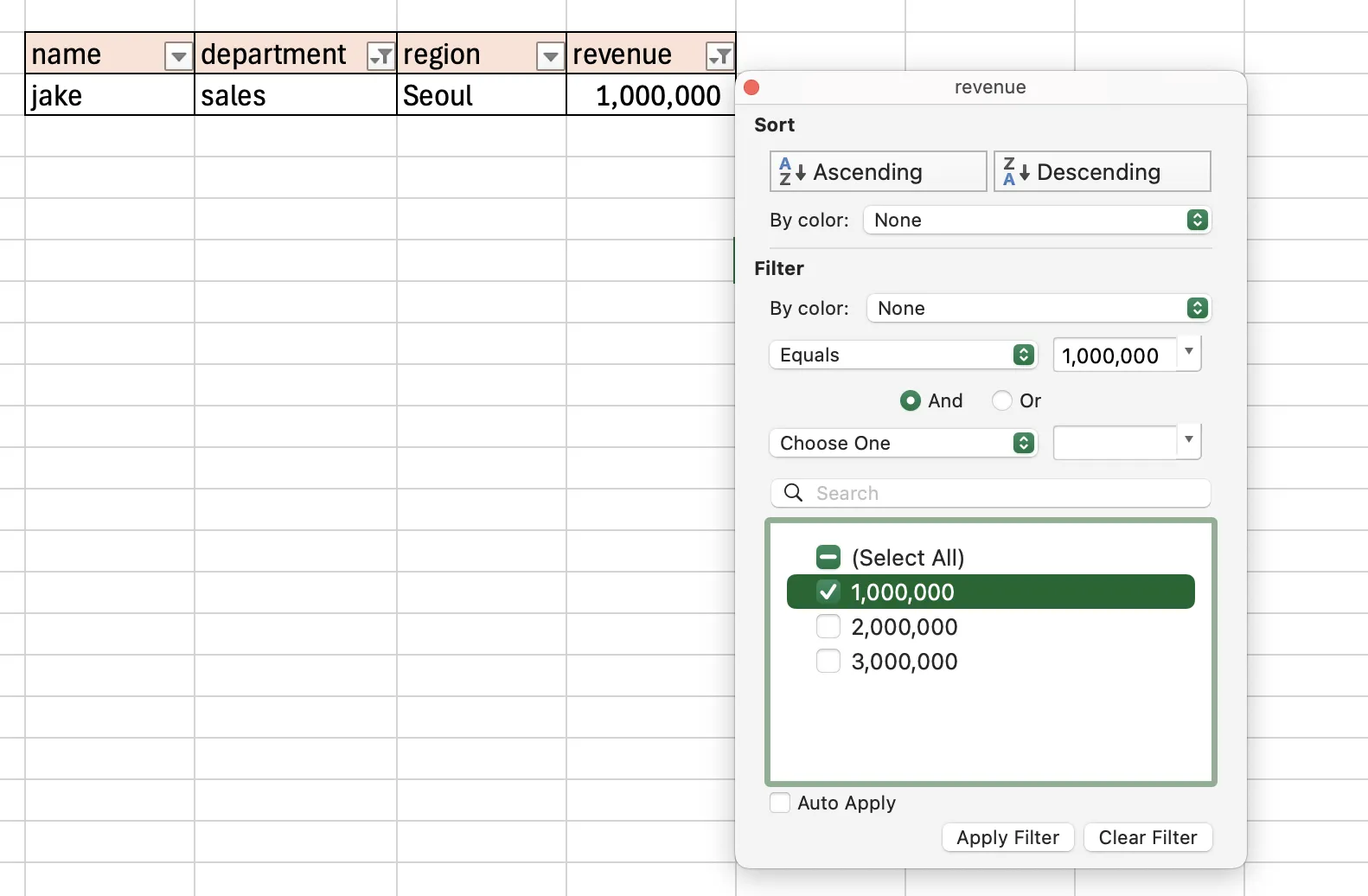
Example:
- Department = Sales
- Revenue = 1,000,000
Only rows that meet both conditions will be displayed.
This is why the result set gets smaller as you apply more filters.
When Auto Filter Isn’t Enough: What Is Advanced Filter?
Limitations of Auto Filter
Auto Filter is fast and sufficient for most tasks, but it has limitations:
✔️ You can’t extract results to a different location
✔️ Complex conditions are difficult to set
What Is Excel Advanced Filter?
The Advanced Filter handles more complex filtering than Auto Filter.
While Auto Filter uses dropdown menus, Advanced Filter requires you to define conditions directly in a table format.
This allows you to:
- Combine multiple logical conditions
- Create OR conditions that Auto Filter struggles with
- Copy filtered results to another location
Advanced Filter is especially useful when creating reports or repeatedly extracting data using the same conditions.
Key Concept of Advanced Filter: Understanding the Criteria Range
To use Advanced Filter, you must first create a Criteria Range.
The column headers in the criteria range must exactly match those in the original data.
For example, to filter data where revenue is at least 1,000,000 and the region matches a specific value:
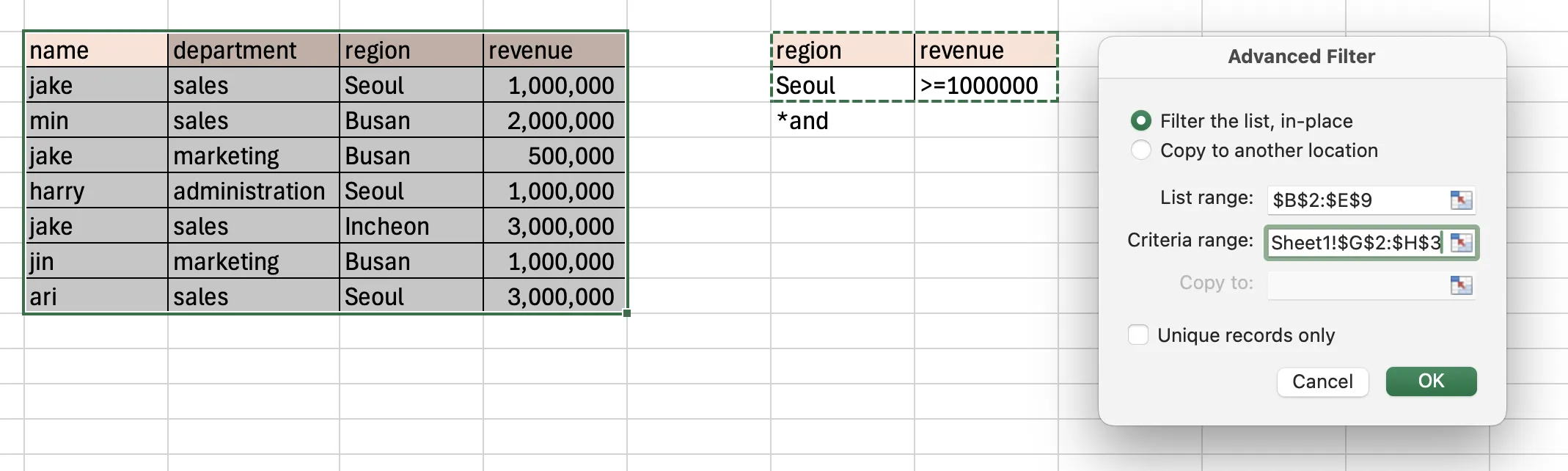
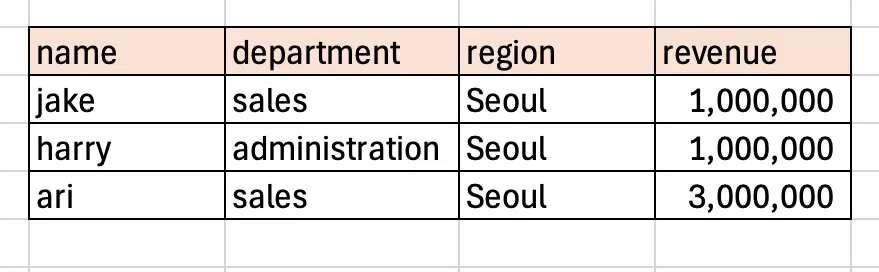
Conditions entered in the same row are treated as AND conditions.
How to Set OR Conditions in Advanced Filter
One of the biggest advantages of Advanced Filter is how easily it handles OR conditions.
For example, to find data where: Revenue ≥ 2,000,000 OR Region matches a certain value
Enter each condition on a different row in the criteria range.
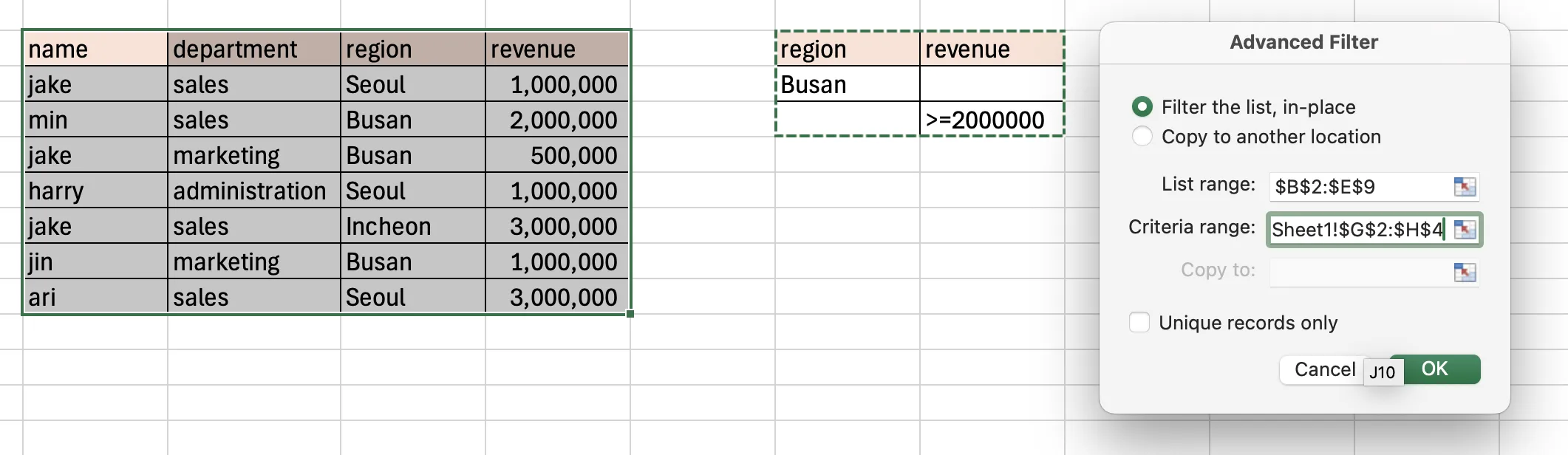
Excel interprets this as “show rows that meet any of these conditions,” something that is difficult to achieve with Auto Filter alone.
Extracting Filtered Results to Another Location
Advanced Filter can copy filtered data to a separate location instead of just hiding rows.
Steps
- Click any cell in the original data range.
- Go to Data → Advanced.
- Set the List Range to the original data.
- Set the Criteria Range.
- Select Copy to another location.
- Choose where to paste the results and click OK.
This keeps the original data intact while extracting only what you need.
Important Tips When Using Advanced Filter
- Column headers in the criteria range must match the original data exactly.
- The criteria range must not overlap with the data range. Leaving at least one blank row between them helps prevent conflicts.
- Merged cells can prevent Advanced Filter from working correctly.
Once you understand the structure of the criteria range, Advanced Filter becomes far more powerful than Auto Filter.
When Should You Use Advanced Filter?
✔️ When extracting data with the same conditions repeatedly
✔️ When creating report-only datasets
✔️ When removing duplicates
Common Reasons Excel Filters Don’t Work
Merged Cells
Excel filters don’t work properly with merged cells, especially in header rows.
Blank Rows or Columns
Excel may treat blank rows or columns as the end of the data range.
Mixed Data Formats
Numbers stored as text or dates that appear to be valid but are actually stored as text can cause filters to behave incorrectly.
How to Remove Excel Filters
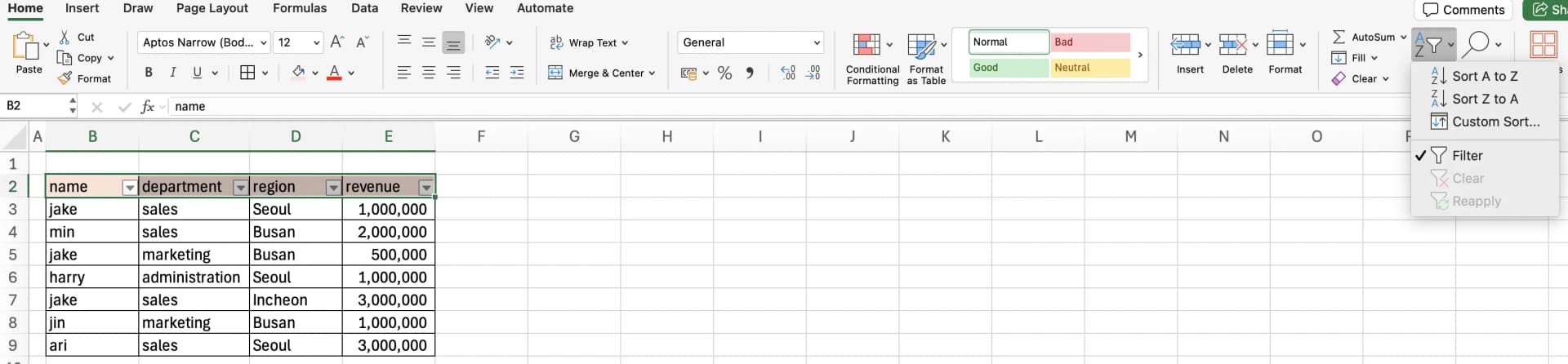
Steps ( Ctrl + Shift + L )
- Go to Data → Filter again
- Or select Clear Filter from each column
Removing filters does not reset sorting. For important data, it’s best to keep a separate column that preserves the original order.
Excel Filter FAQ
Q1. Can I copy only filtered data?
Yes. You can copy only visible rows.
Steps
- Select the filtered range
- Press Alt + ; to select visible cells only
- Copy (Ctrl + C) and paste
Without this step, hidden rows may be copied by mistake.
Q2. Is it safe to edit values while filters are applied?
It’s possible, but risky.
When you edit a value, the row may immediately disappear if it no longer meets the filter condition—making it hard to track.
For important edits, remove filters first or copy the rows to another area.
Q3. I removed the filter, but the sort didn’t reset
This usually happens when:
- Another column still has an active filter
- Numbers and text are mixed
- Dates are stored as text
- There are blank rows or merged cells
Start by clearing all filters, then reapply conditions one by one.
Most filter issues are caused by data structure problems rather than filter settings.
Understanding Excel Filters Improves Data Work Speed
Excel filters may seem like simple show-and-hide tools, but when used correctly, they dramatically improve both speed and accuracy.
Auto Filter is perfect for quick checks, while Advanced Filter excels at complex logic and data extraction.
When filters don’t behave as expected, checking the data structure is often the fastest fix.
Choosing the right filter for the situation can significantly reduce the time spent on data cleaning and analysis.
Work More Efficiently in Excel with Cicely AI
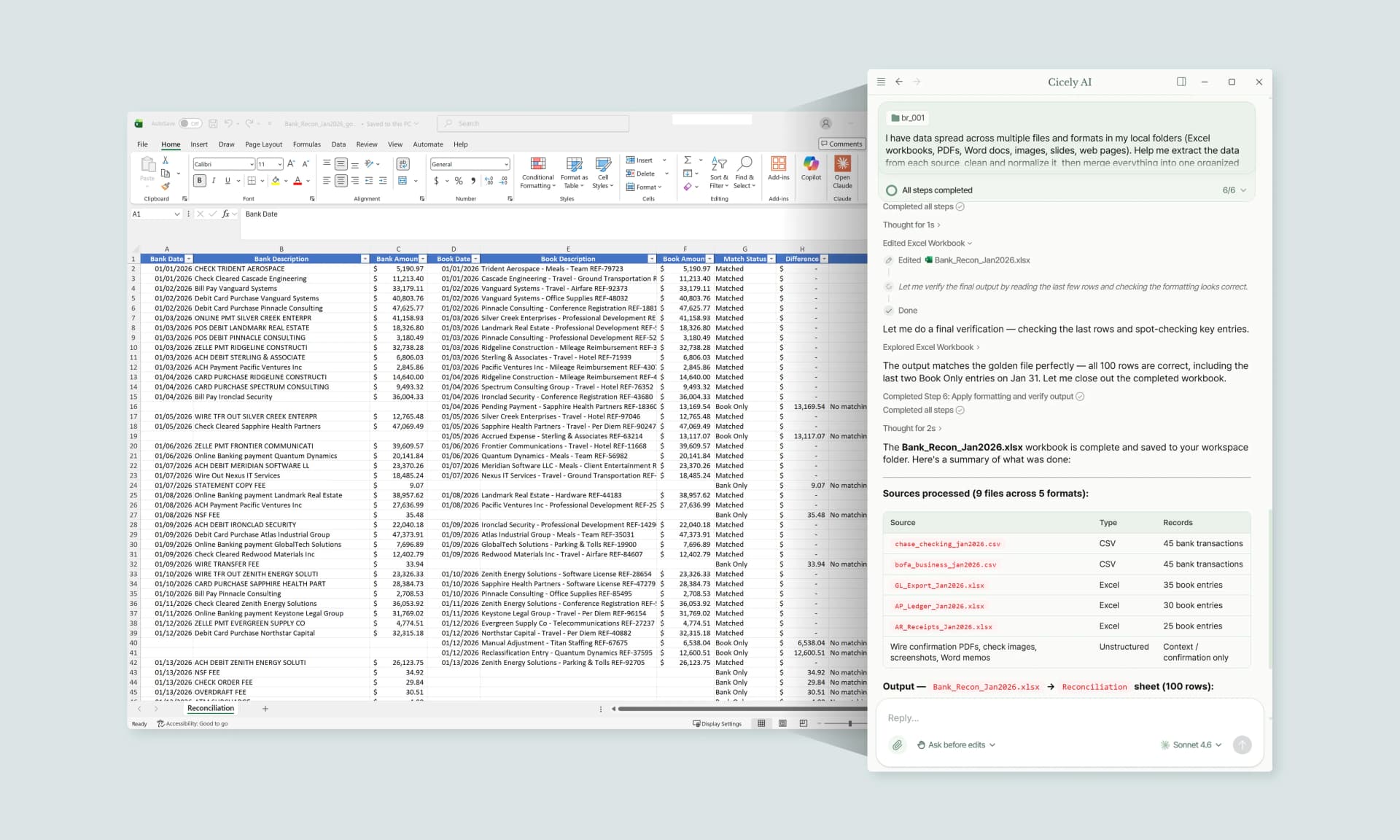
Setting up filters, managing multiple conditions, and troubleshooting unexpected results can take more time than expected, especially in large datasets.
Cicely AI is a desktop-native AI coworker built for spreadsheet workflows. Instead of navigating menus manually, you can describe what you need in plain English, such as:
"Show only January data for the Sales team."
"Extract rows where revenue is above 1,000,000 and region is East."
"Create an OR condition where region is West or revenue exceeds 2,000,000."
Cicely helps you review your worksheet structure and apply the correct filter logic step by step. Everything runs locally on your PC. No file uploads. No browser tools.