
Blog
Lock Specific Cells in Excel: Protect Specific Cells and Sheets
 Sik Yang · Feb 1, 2026
When you want to prevent certain cells from being edited in Excel, the most commonly used feature is cell locking.
It is essential for documents such as quotes, application forms, and calculation sheets where you need to prevent accidental edits. In practice, the most common complaints are: “I locked the cells, but they can still be edited” and “After protecting the sheet, I can’t edit anything at all.”
In this guide, we’ll walk through why cell locking doesn’t work by default in Excel, the correct steps to lock only specific cells, and best practices to ensure cell protection remains intact even when files are shared, copied, or printed.
Why Cell Locking Doesn’t Work by Default in Excel
All Cells Are Locked by Default, But That Can Be Misleading
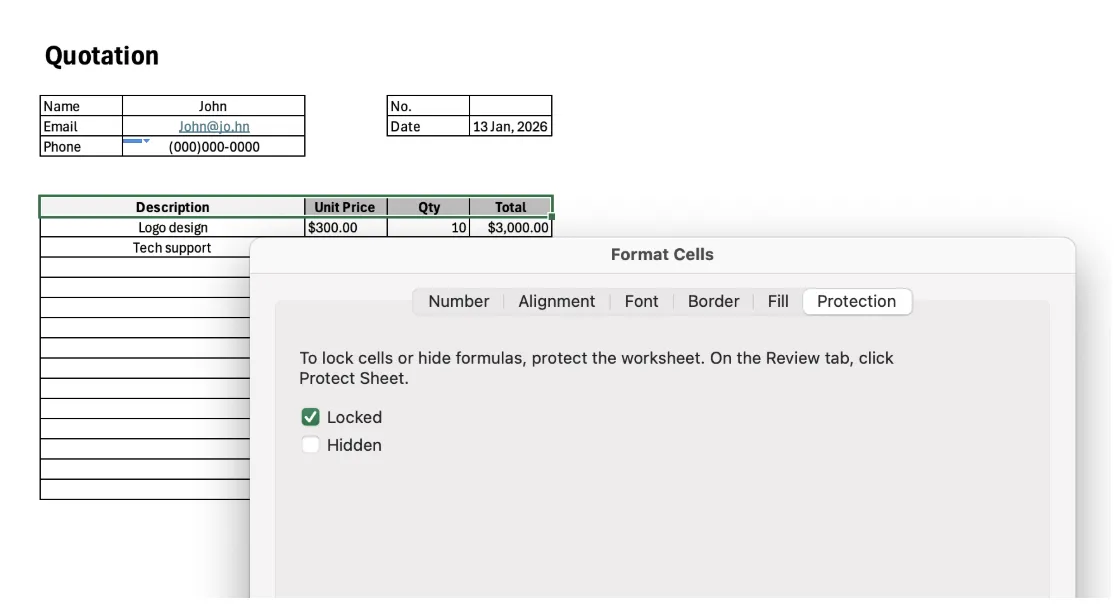
When you open a new Excel worksheet, all cells are locked by default.
However, despite this setting, you can freely edit any cell. This often leads to confusion, with users wondering why locked cells are still editable.
Cell Locking Alone Does Not Restrict Editing
Cell locking does not work on its own.
Even if cells are marked as locked, Excel does not restrict editing unless sheet protection is applied.
In other words, locking a cell only marks it as a protection target. The actual restriction is enforced by sheet protection.

The Core of Excel’s Protection Structure: Cell Settings and Sheet Protection
Excel protection works in two steps:
- Cell Locking: Define which cells should be protected
- Sheet Protection: Activate protection on the worksheet
Both steps must be completed for cell locking to take effect.
Difference Between Cell Locking and Sheet Protection
Cell Locking: Setting Conditions for Editing Restrictions
Cell locking defines which cells should not be edited.
However, this step alone does not block user input or changes.
Sheet Protection: Applying the Lock Settings
Once sheet protection is enabled, locked cells become uneditable, while unlocked cells remain available for input.

The Most Common Point of Confusion in Real Workflows
The most common misunderstanding is assuming that locking cells immediately prevents editing.
Because cell locking alone does not enforce restrictions, shared Excel files often suffer from unintended changes to formulas or reference values.
In Excel, sheet protection is the feature that actually controls editing behavior. Only after applying sheet protection do locked cells become truly protected, while designated input cells remain editable.
Most real-world issues related to excel cell lock not working are not caused by bugs, but by misunderstanding the relationship between cell locking and sheet protection.
Why Locked Cells Are Still Editable
Sheet Protection Is Not Applied
This is the most common cause.
If you lock cells but do not protect the sheet, anyone can still edit them.
Cells That Should Remain Editable Are Also Locked
Since all cells are locked by default, you must follow this sequence to lock specific cells properly:
Unlock all cells → Lock only the required cells.
Skipping this step results in input cells being locked unintentionally.
Protection Is Removed in Shared or Copied Files
When you copy worksheets into a new workbook or export to other tools, protection settings may not carry over as expected. Before sharing a file, verify that sheet protection is still enabled and the intended input cells remain editable.
How to Lock Specific Cells in Excel
Step 1: Unlock All Cells
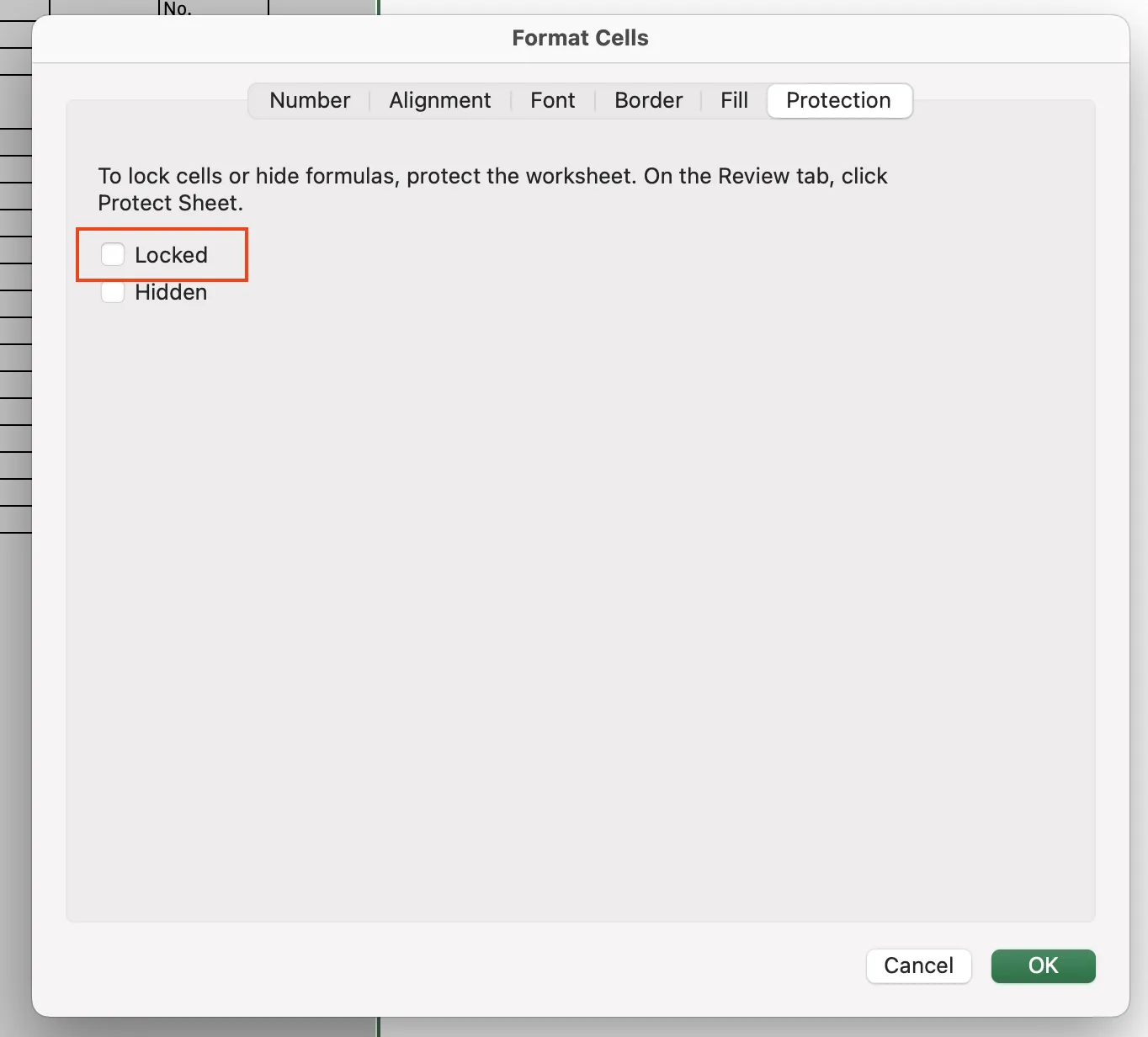
Select all cells (Ctrl + A).
Go to Format Cells → Protection and uncheck Locked.
Step 2: Lock Only the Required Cells
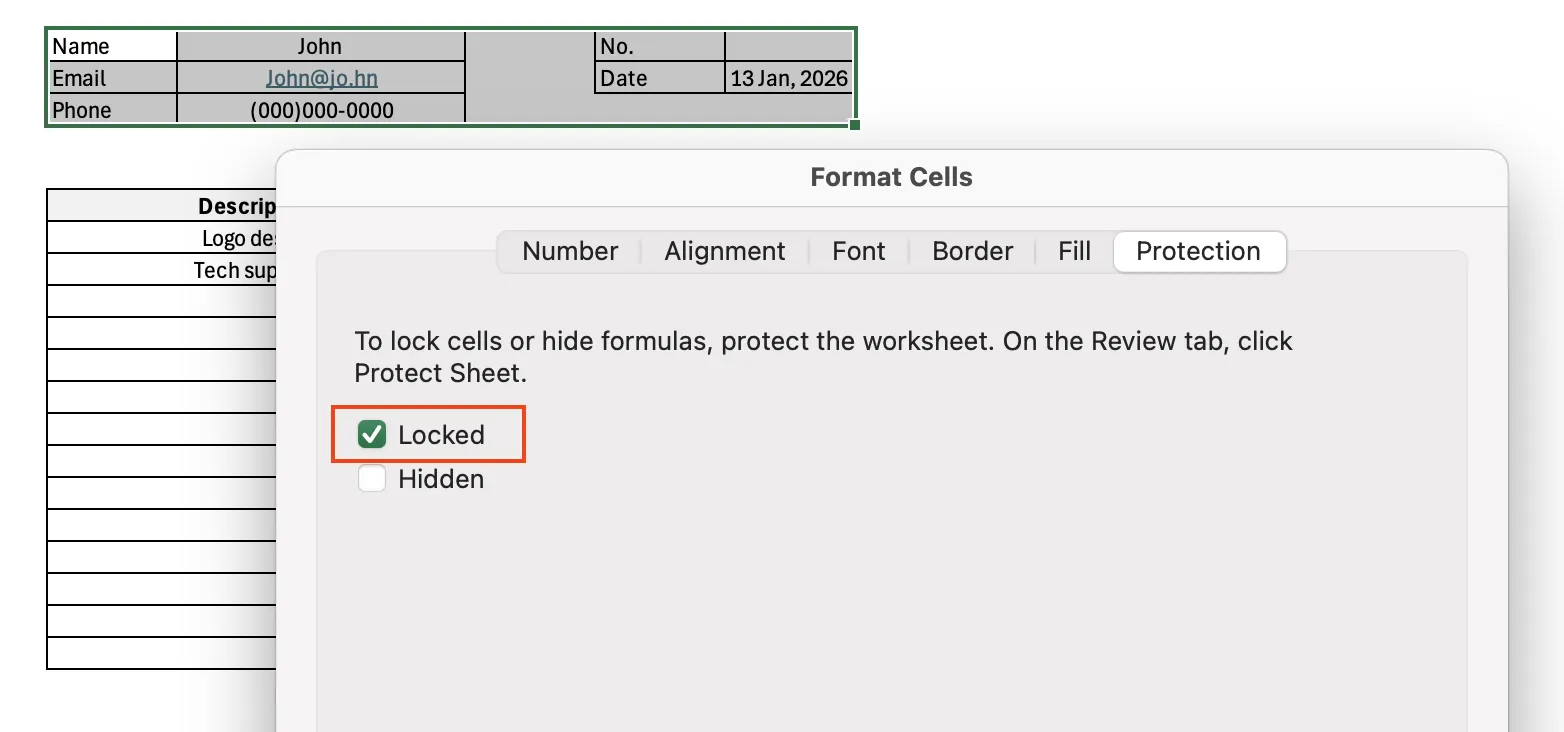
Select cells that should not be edited, such as formulas or reference values.
Go to Format Cells → Protection and check Locked.
Step 3: Protect the Sheet and Review Permissions
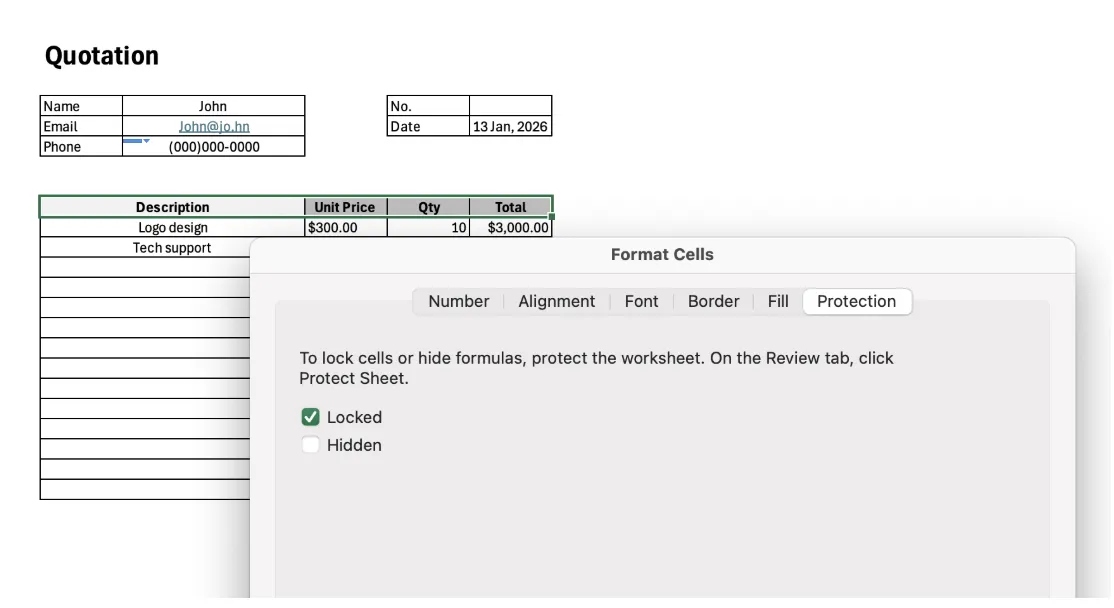
Go to Review → Protect Sheet, then choose which actions users are allowed to perform (selecting cells, formatting, etc.).
Setting a password is optional, but it is strongly recommended for shared files or any file sent outside your organization.
Key Options to Check When Protecting an Excel Worksheet
Choosing Allowed User Actions
If users only need to enter data, allowing Select unlocked cells is the safest option.
Password Protection Tips
Excel sheet protection passwords are nearly impossible to recover if lost.
In professional environments, passwords should be managed by administrators or stored securely.
Reducing Friction in Protected Sheets
Use colors or borders to visually distinguish input cells from protected cells. This significantly reduces confusion and edit requests.
Keeping Cell Locks Intact When Sharing, Copying, or Printing
Common Scenarios Where Protection Is Lost
- Converting files to Google Sheets
- Copying individual worksheets
- Pasting content into external templates
Best Way to Preserve Protection Settings
Instead of copying cells, duplicate the entire file whenever possible.
Why Printed Excel Files Should Still Be Protected
Even print-ready or submission files should remain protected to prevent accidental last-minute changes.
Conditions for Excel Cell Locking to Work Properly
For cell locking to work correctly in Excel, cell lock settings and sheet protection must always be applied together as a single workflow.
Locking cells alone does not activate protection. Only when sheet protection is enabled do locked cells become uneditable.
Understanding this structure helps prevent common issues such as broken formulas, changed reference values, or unauthorized edits in shared or submitted files. If Excel is used as a professional document tool, applying both cell locking and sheet protection should be considered a standard practice.
Work More Efficiently in Excel with Cicely AI
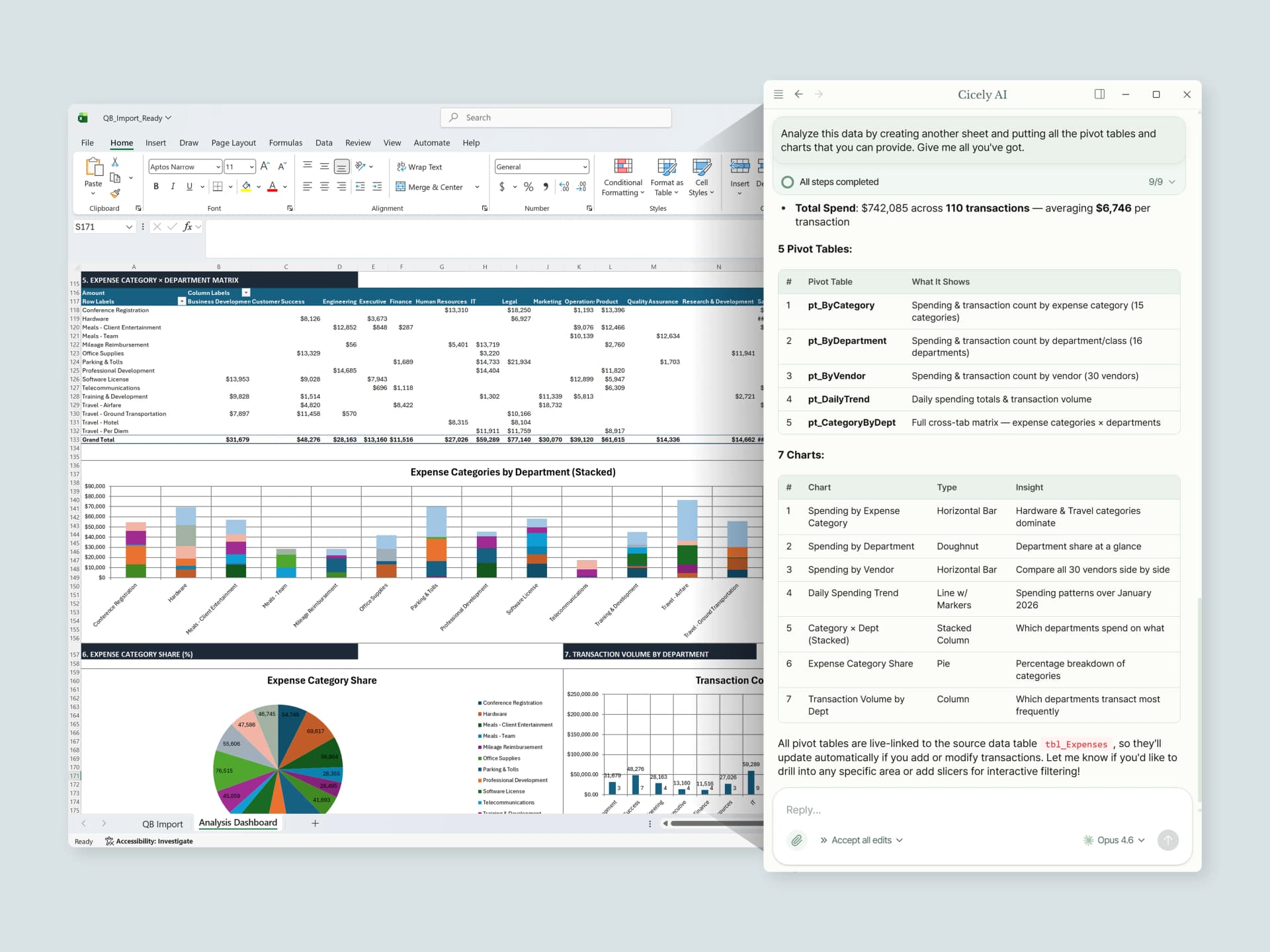
Once you understand how cell locking and sheet protection work, the next step is reducing the time you spend on setup and troubleshooting.
Cicely AI is a desktop-native AI coworker designed for spreadsheet workflows. Instead of memorizing menu paths, you can describe what you want in plain English, such as:
"Unlock input cells but lock all formula cells on this sheet."
"Protect this sheet and allow editing only in the yellow cells."
"Check why locked cells are still editable and fix the settings."
Cicely helps you review the worksheet structure and guides you through the correct protection steps. Everything runs locally on your PC. No uploads and no copy-pasting into browser tools.