
Blog
Merge Cells in Excel Without Losing Data
 Mike Yi · Jan 6, 2026
When creating tables in Excel, many users naturally turn to the Merge Cells feature. Whether it’s centering a title across multiple columns or making a report look cleaner, merging cells often feels like the quickest solution.
However, the more frequently you use Excel merge cells in real work scenarios, the more likely you are to run into problems, such as formulas failing, sorting breaking, or filters becoming unavailable. If you’ve ever asked, “Why won’t Excel let me sort this?” or “Why does filtering not work?”, merged cells are often the root cause.
In this guide, we’ll explain how to merge and unmerge cells safely, common issues caused by merged cells, and safer alternatives.
What Does Merge Cells Mean in Excel?
Excel’s Merge Cells feature combines multiple cells into a single cell. It’s commonly used to highlight headers or display one label across several columns.
This feature is popular because it is quick and changes the layout immediately. With one click, the spreadsheet appears more organized. In reports, proposals, and printable documents, merging cells often becomes a habit.
The issue is that merging cells changes the underlying data structure of your worksheet. While the layout may look better, Excel no longer treats the merged area as individual cells—this is where many problems begin.
How to Merge Cells in Excel (Basic Method)
Merging cells in Excel is straightforward.
How to merge cells
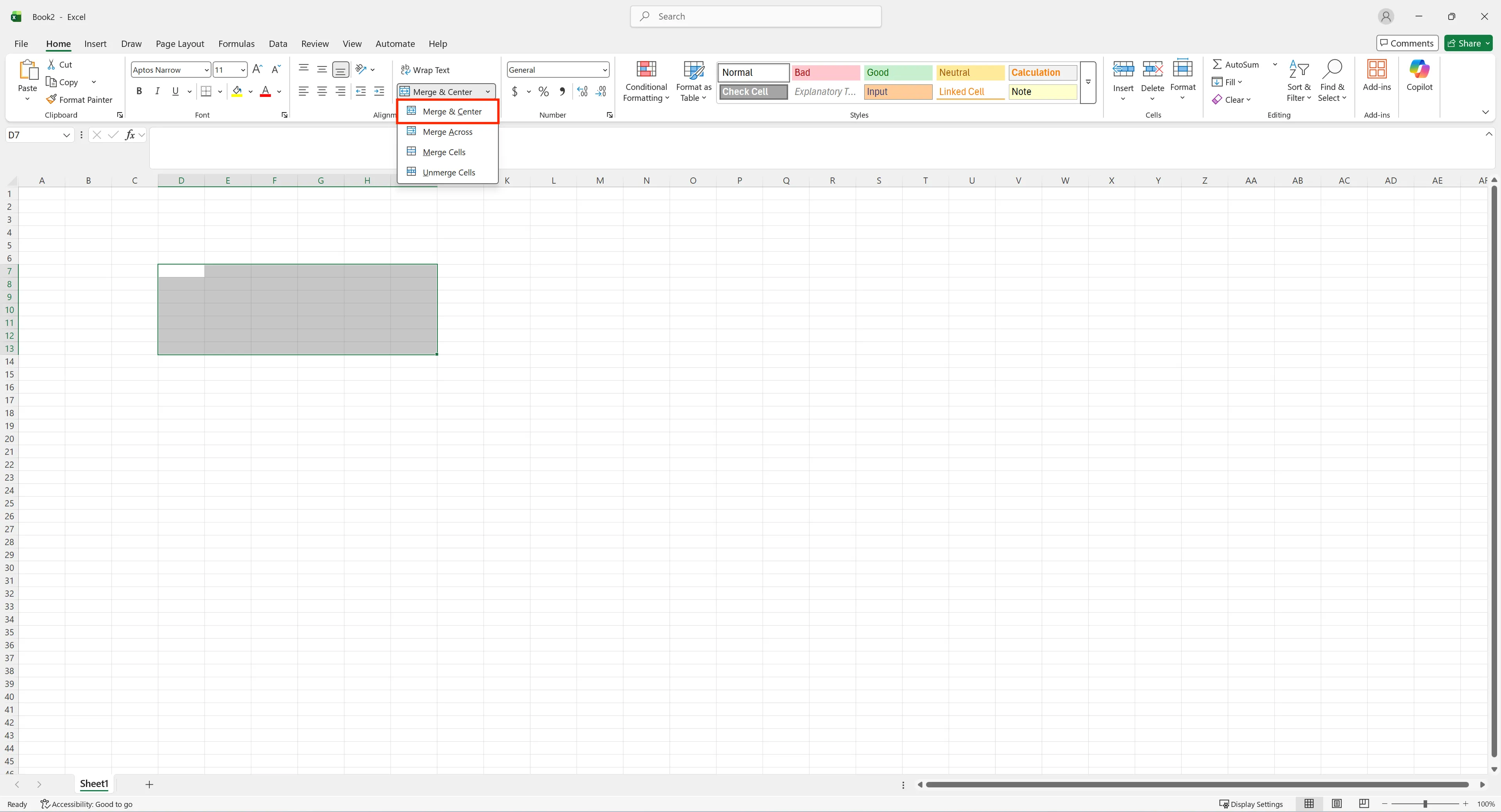
- Select the range of cells you want to merge.
- Go to the Home tab.
- Click Merge & Center.
This menu includes options like Merge & Center, Merge Cells, and Merge Across. Most users rely on Merge & Center.
Be careful: if multiple cells already contain data, Excel will keep only the value from the top-left cell and delete the rest. This is why Excel displays a warning before merging.
How to Unmerge Cells in Excel
If you want to return merged cells to their original state, you’ll need to unmerge them.
How to unmerge cells
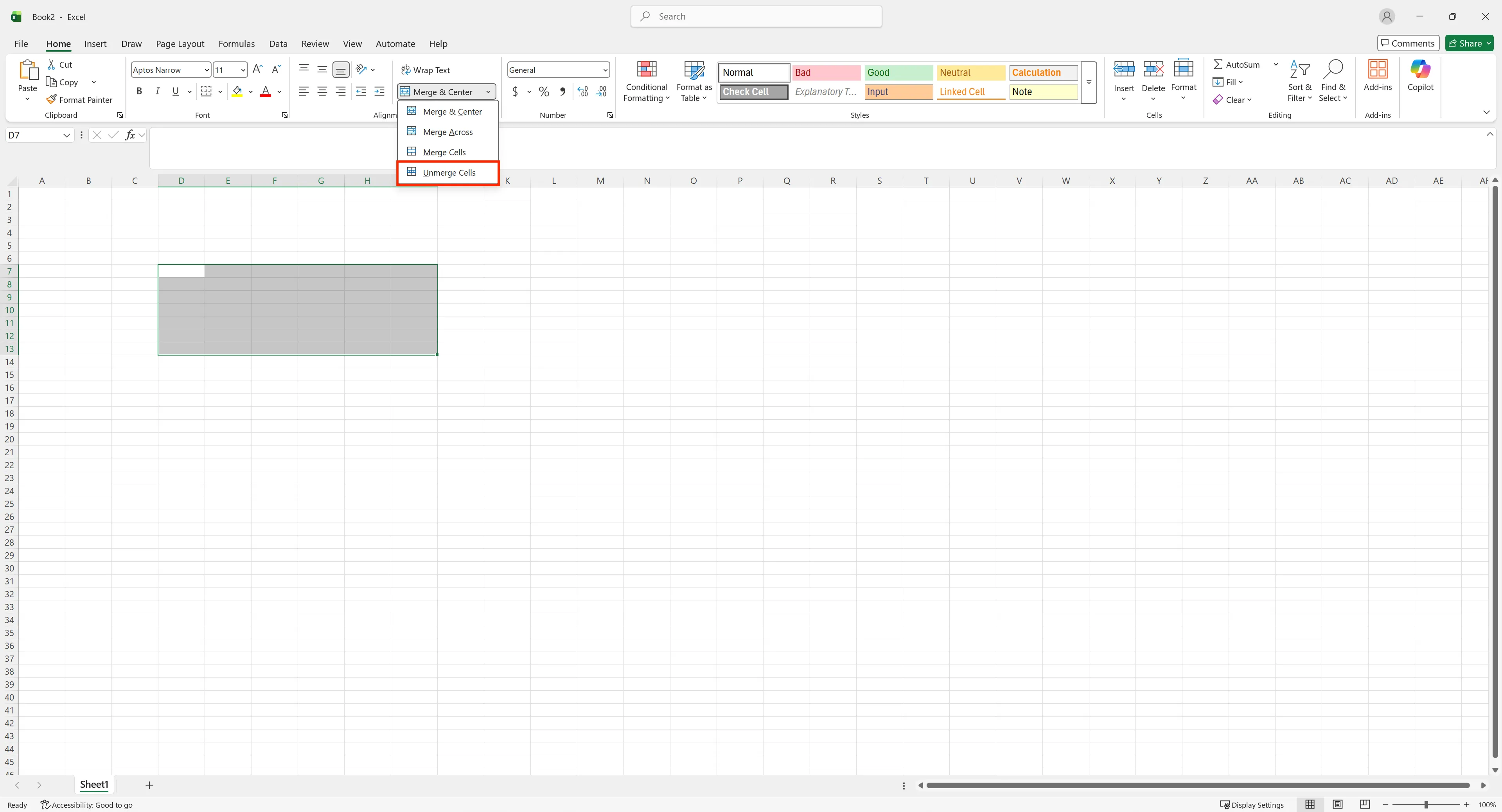
- Select the merged cell
- Go to Home → Merge & Center
- Click Unmerge Cells
Unmerging restores the cell structure, but it does not restore lost data.
This is permanent unless you have a backup.
Any content that existed in the other cells before merging is permanently gone unless you backed it up.
This is why repeatedly merging and unmerging cells often leads to misaligned or missing data.
Why Merged Cells Cause Problems in Excel
Merged cells may look harmless, but they create structural limitations in data-driven spreadsheets.
1. Sorting and Filtering Fail
Excel’s sort and filter features rely on consistent, individual cell structures. When merged cells exist, Excel often displays errors or disables sorting entirely.
2. Formulas and Pivot Tables Break
Merged cells are not treated as standard individual cells, which can cause issues with formulas like SUM or AVERAGE, as well as pivot tables and structured references.
3. Automation and AI Tools Struggle
Many automation tools rely on consistent row and column structures. Merged cells disrupt that structure.
The Best Alternative to Merge Cells: Center Across Selection
If you want the visual effect of merged cells without breaking your data, Center Across Selection is the best option. This feature centers text across multiple cells without actually merging them.
How to use Center Across Selection
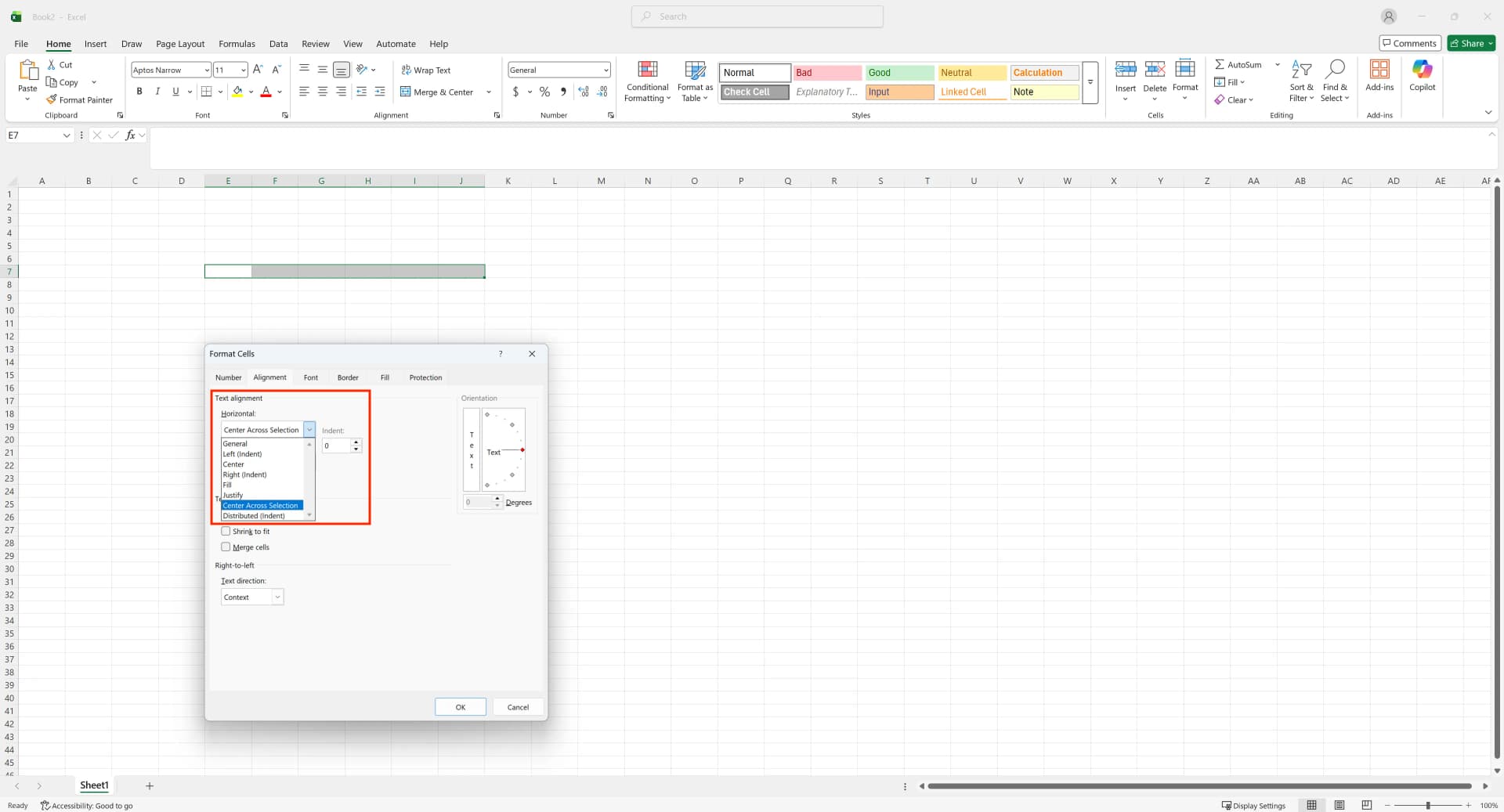
- Select the desired cell range.
- Open Format Cells.
- Go to Alignment → Horizontal.
- Choose Center Across Selection.
Visually, the result looks almost identical to merged cells, but each cell remains independent. This means calculations, sorting, and filtering work normally.
Why Center Across Selection Is Better for Real Work
Center Across Selection keeps the data structure intact while allowing clean formatting. It’s safer for data analysis, collaboration, automation, and AI-based document processing.
Many experienced Excel users recommend avoiding merged cells and using Center Across Selection instead.
How to Merge Cells Without Losing Data in Excel
If your goal is to combine values from multiple cells, merging cells is not the right approach.
Better options include:
- Using CONCAT or TEXTJOIN to combine values into a single cell
- Creating helper columns for calculations
- Separating display cells from raw data cells
These methods allow you to preserve original data while displaying results in a clean format.
Merge Cells vs. Center Across Selection: When to Use Each
Merged cells may be acceptable in print-only reports where no sorting or calculations are required.
For any sheet involving data entry, analysis, sorting, filtering, or sharing, it’s far safer to avoid merging cells and use Center Across Selection instead.
Frequently Asked Questions (FAQ)
Q1. Why can’t I sort or filter when cells are merged in Excel?
Excel’s sorting, filtering, and pivot features rely on individual cell structures. When cells are merged, that structure breaks, causing these features to stop working properly. For tables, merged cells should be avoided.
Q2. Why does data disappear when I unmerge cells?
Only the value from the top-left cell is preserved during merging. When you unmerge, Excel does not restore values to other cells, making it seem like data was lost. Always back up data or avoid merging in the first place.
Q3. How is Center Across Selection different from Merge Cells?
Center Across Selection aligns text across multiple cells without merging them. This preserves sorting, filtering, and formulas, making it much more reliable for real-world Excel use.
The Key Rule to Remember About Excel Merge Cells
The key guideline is straightforward:
Avoid merging cells in data tables. Use alternative formatting methods instead.
Following this rule alone can prevent many common Excel issues.
Work More Efficiently in Excel with Cicely AI
Cicely AI is a desktop-native AI coworker for Excel on Windows. It helps you clean up data, fix formulas, reorganize worksheets, and automate repetitive spreadsheet work with natural language while keeping files local on your PC.
Everything runs locally on your PC. No file uploads. No browser tools.