
Blog
How to Sort Data in Excel: Step-by-Step Guide and Common Fixes
 Sik Yang · Jan 18, 2026
Have you ever tried organizing an employee list by department, clicked the sort button, and then realized that names moved but department information stayed in place, scrambling your spreadsheet? Or maybe you sorted sales figures in descending order and ended up with a strange sequence like 1, 10, 2, 20 instead of the expected 20, 10, 2, 1?
These issues usually result from data formatting problems or incorrect range selection. This guide explains the most common reasons Excel won’t sort correctly and provides practical, step-by-step solutions to fix problems when sorting data in Excel.
Basic Excel Sorting Methods (Ascending and Descending)
Excel sorting rearranges rows in tabular data to organize information based on your selected criteria. The most basic way to sort data in Excel is to apply ascending or descending order using a single column.
What Is Ascending Sort?
Ascending sort arranges data from smallest to largest values or alphabetically from A to Z. When you sort data in Excel this way, numbers are arranged as 1, 2, 3, 10, text is sorted from A to Z, and dates display with the earliest dates at the top.
Understanding Descending Sort
Descending sort works in the opposite direction. Numbers are arranged from largest to smallest (100, 50, 10, 1), and text follows the same alphabetical order in reverse. When you sort by date in Excel using descending order, the most recent dates appear at the top of the list.
How to Sort a Single Column in Excel
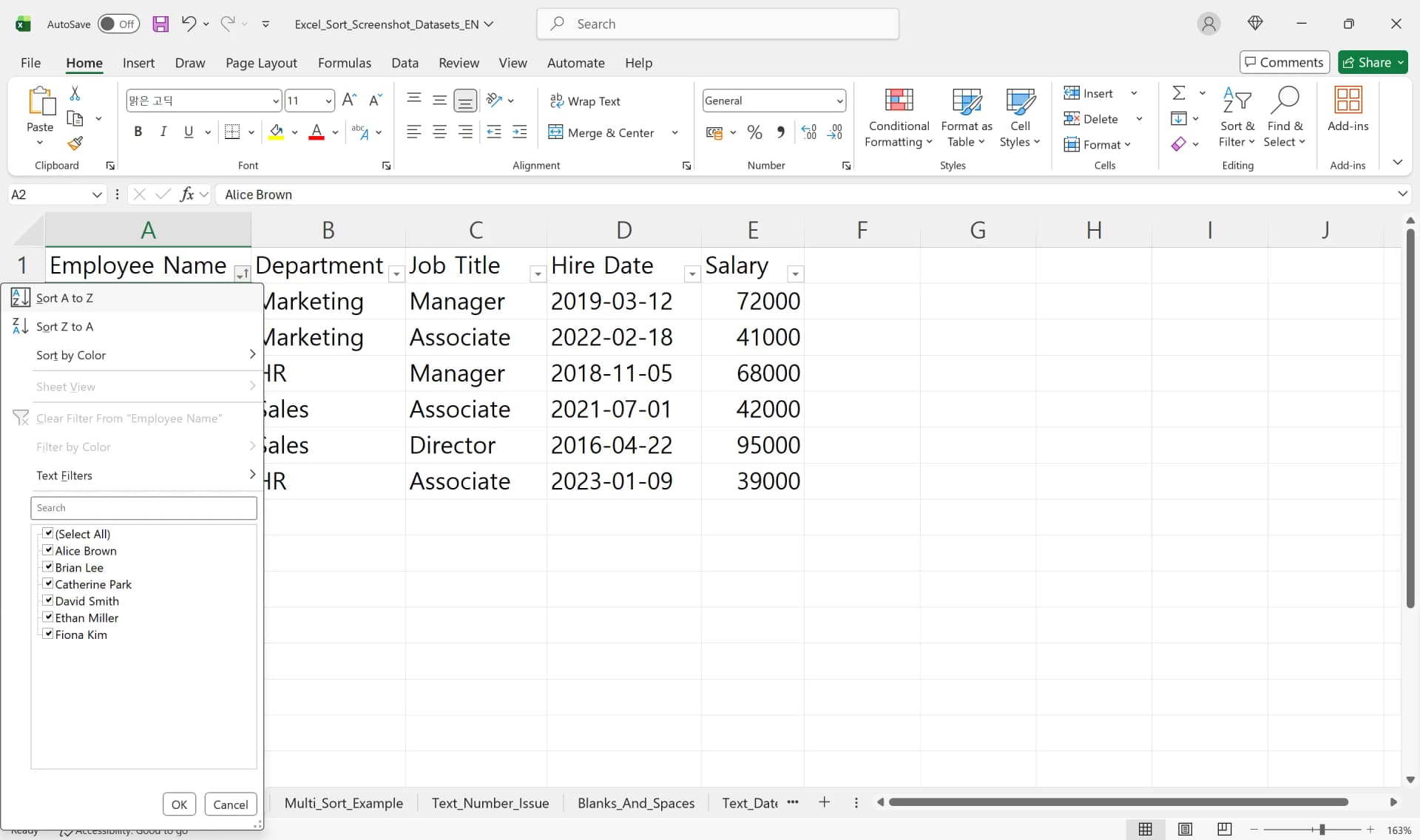
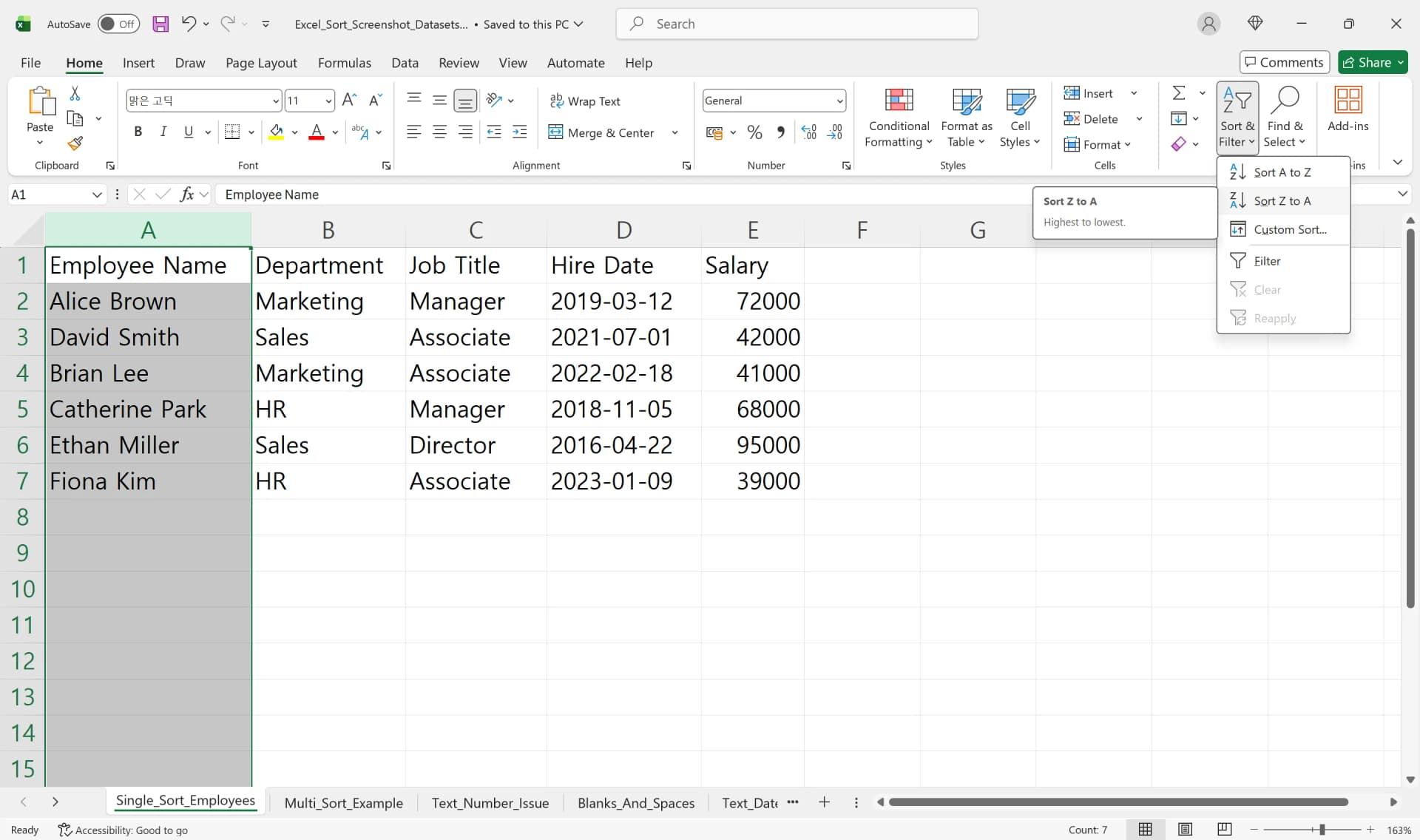
- Click any cell within the column you want to use as the sorting criterion.
- Go to the Home tab → Editing group → Sort & Filter → choose Sort A to Z or Sort Z to A.
- Excel automatically detects adjacent data and sorts entire rows together based on the selected column.
You can also use the Data tab and click Sort A to Z or Sort Z to A to sort data in Excel.
Important Caution for Single-Column Sorting
If you select only one column instead of the entire table, Excel may sort that column alone and leave the rest of the data unchanged. This causes rows to become mismatched. Always select the full data range, including headers, before sorting in Excel to avoid breaking your table structure.
How to Sort Multiple Columns in Excel (Multi-Level Sorting)
In real-world spreadsheets, you often need to sort by multiple criteria such as department, position, and date. That’s why it’s important to understand how to sort multiple columns in Excel using multi-level sorting.
What Is Multi-Level Sorting?
When you sort multiple columns in Excel, the data is first sorted by a primary criterion. Then, within each group of matching primary values, Excel applies secondary and even tertiary sorting rules.
For example, you might sort first by Department in ascending order, and then by Position in descending order within each department.
How to Sort Multiple Columns in Excel
- Select the entire data range, including headers.
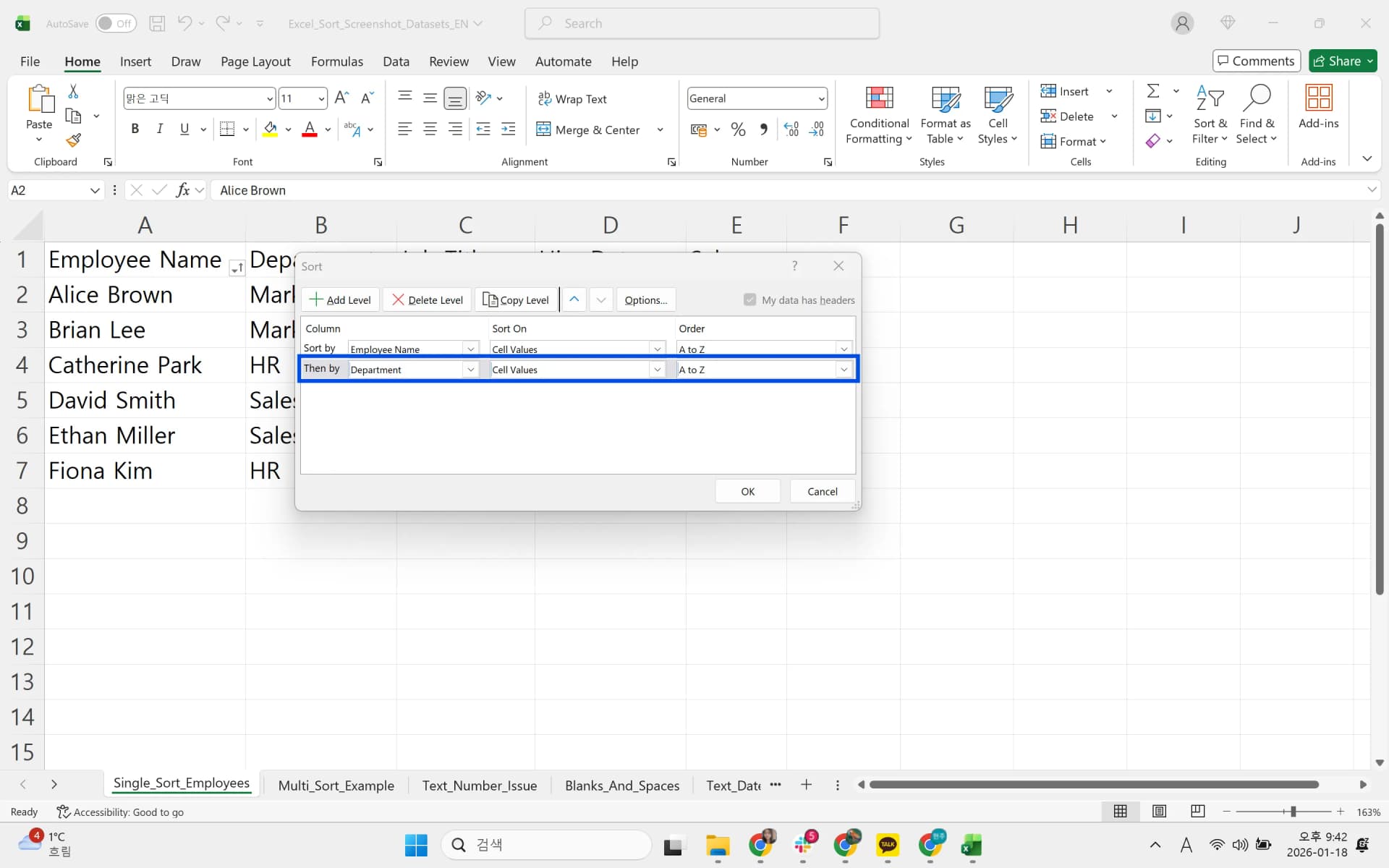
- Go to the Data tab and click Sort to open the Custom Sort dialog.
- Choose your primary column under Sort by and select ascending or descending order.
- Click Add Level to add secondary or tertiary sorting conditions.
For HR rosters, sorting first by Position (descending) and then by Name (ascending) displays executives at the top and entry-level employees below. For sales lists, sorting by Branch (ascending) and then by Revenue (descending) groups locations while ranking performance within each branch.
Four Common Reasons Why Excel Won’t Sort Correctly
When Excel sorting does not work as expected, the issue is usually related to data formatting or incorrect range selection. These four causes are among the most common sorting issues in Excel.
Numbers Stored as Text
Sometimes numbers are stored as text instead of numeric values. When this happens, Excel sorts them alphabetically instead of numerically. As a result, values like 1, 2, 10, 20 become 1, 10, 2, 20 after sorting.
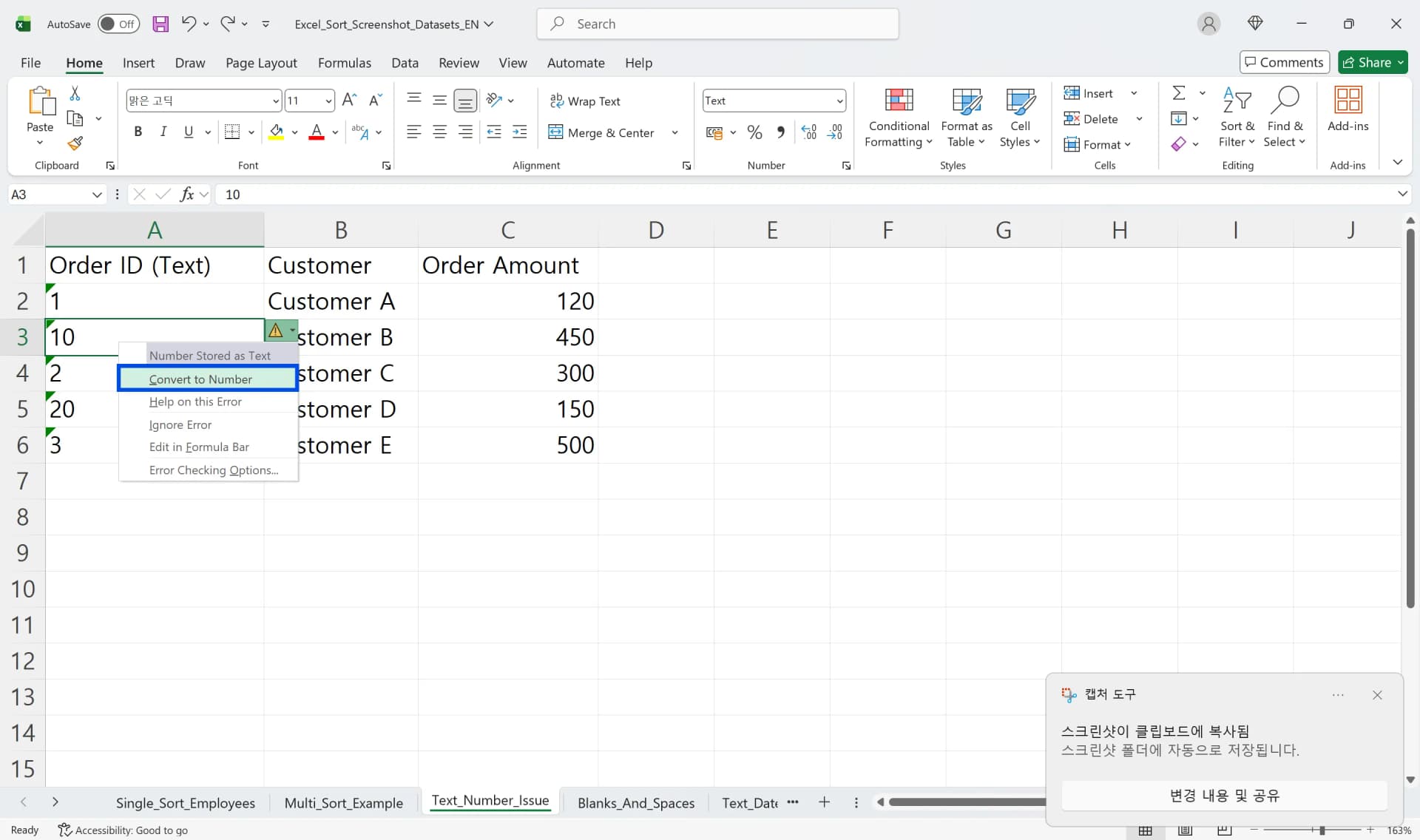
You may see a green triangle in the upper-left corner of cells along with a warning message saying “Number Stored as Text.” This often occurs when data is imported from external systems or when text formatting is applied to preserve leading zeros.
Blank Cells or Hidden Spaces
Blank cells or invisible space characters can also cause sorting issues. You may see identical values split into separate groups or listed multiple times in filter menus.
Trailing or leading spaces make Excel treat otherwise identical entries as different values during sorting and filtering. Blank cells left behind after unmerging cells can also interfere with sorting if they are not cleaned up beforehand.
Merged Cells
Merged cells interfere with Excel’s ability to calculate row and column boundaries. If merged cells exist in your dataset, Excel may display an error message saying that all merged cells must be the same size, or it may partially move data and distort rows during sorting.
Because of this, merged cells should always be unmerged before you attempt to sort data in Excel.
Incorrect Range Selection
If your selected range includes only part of the dataset or skips adjacent columns, Excel will sort only some columns while leaving others unchanged. This leads to mismatched rows where names, departments, and values no longer align correctly.
This usually happens when users drag to select a single column instead of the entire table, or when filter ranges do not match the actual data range.
Fixing Data Type-Specific Sorting Problems
Most sorting errors can be resolved by correcting data types and cleaning up formatting issues before applying the sort command again.
Converting Numbers Stored as Text
Method 1: Using the Warning Icon
- Select the cells that contain numbers stored as text.
- Click the yellow warning icon and choose Convert to Number.
- Sort the data again using ascending or descending order.
Method 2: Multiply Method
- Enter the number 1 in an empty cell and copy it.
- Select the range containing text-formatted numbers.
- Right-click → Paste Special → choose Multiply.
- Paste values only to clean up the data, then sort again.
Fixing Date Format Errors
Excel stores dates as serial numbers. As long as dates are stored correctly, sorting by date in Excel works reliably. Problems occur when dates are stored as text or when formats and separators are inconsistent.
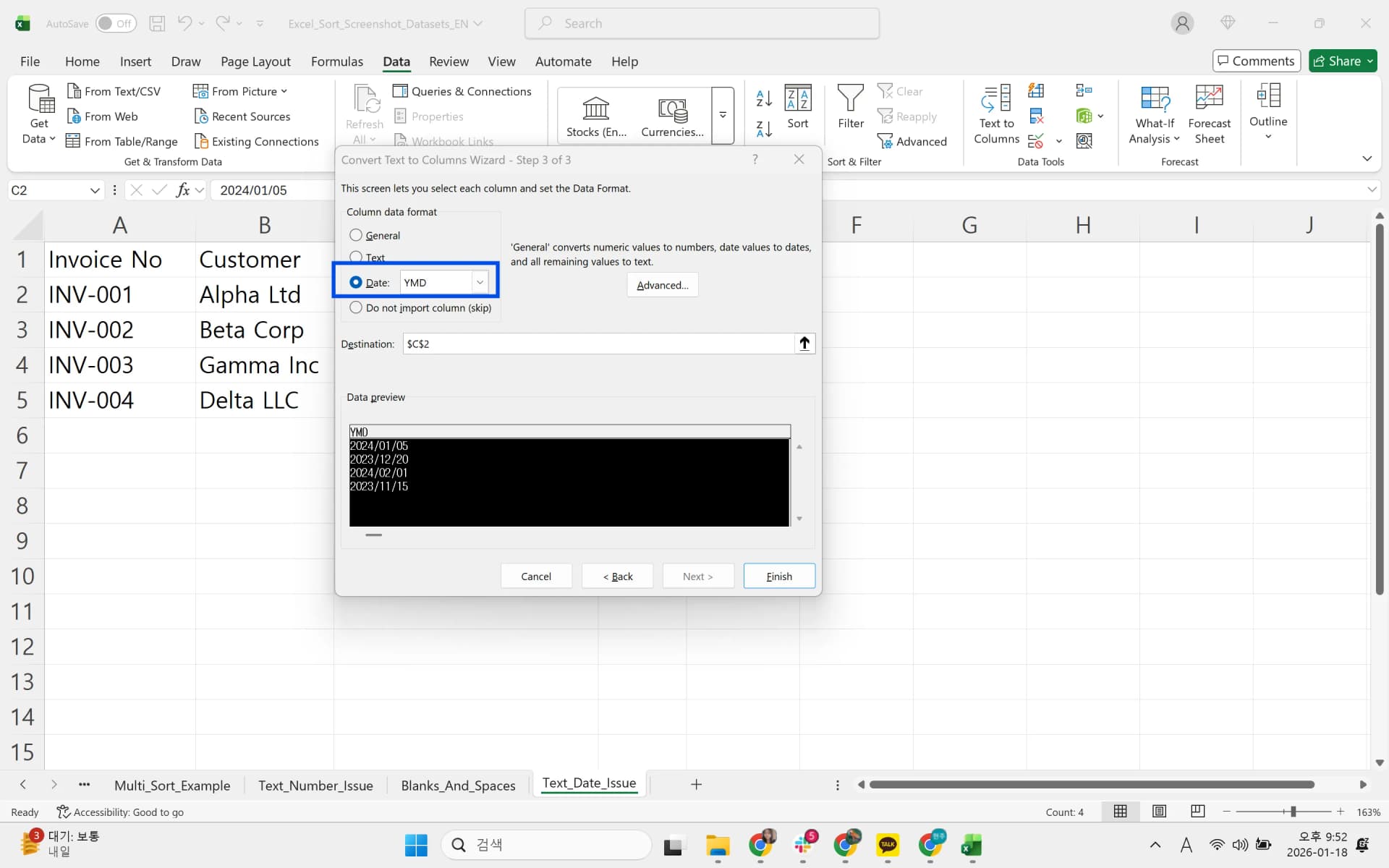
If changing the cell format to Date does not fix the issue, the values are likely stored as text.
- Use Find & Replace (Ctrl + H) or the SUBSTITUTE function to standardize separators.
- Use the DATE function to combine year, month, and day into a valid date value.
- After conversion, sort by date in Excel again to confirm correct ordering.
Removing Leading and Trailing Spaces
Extra spaces affect text comparison, sorting, and pivot table grouping.
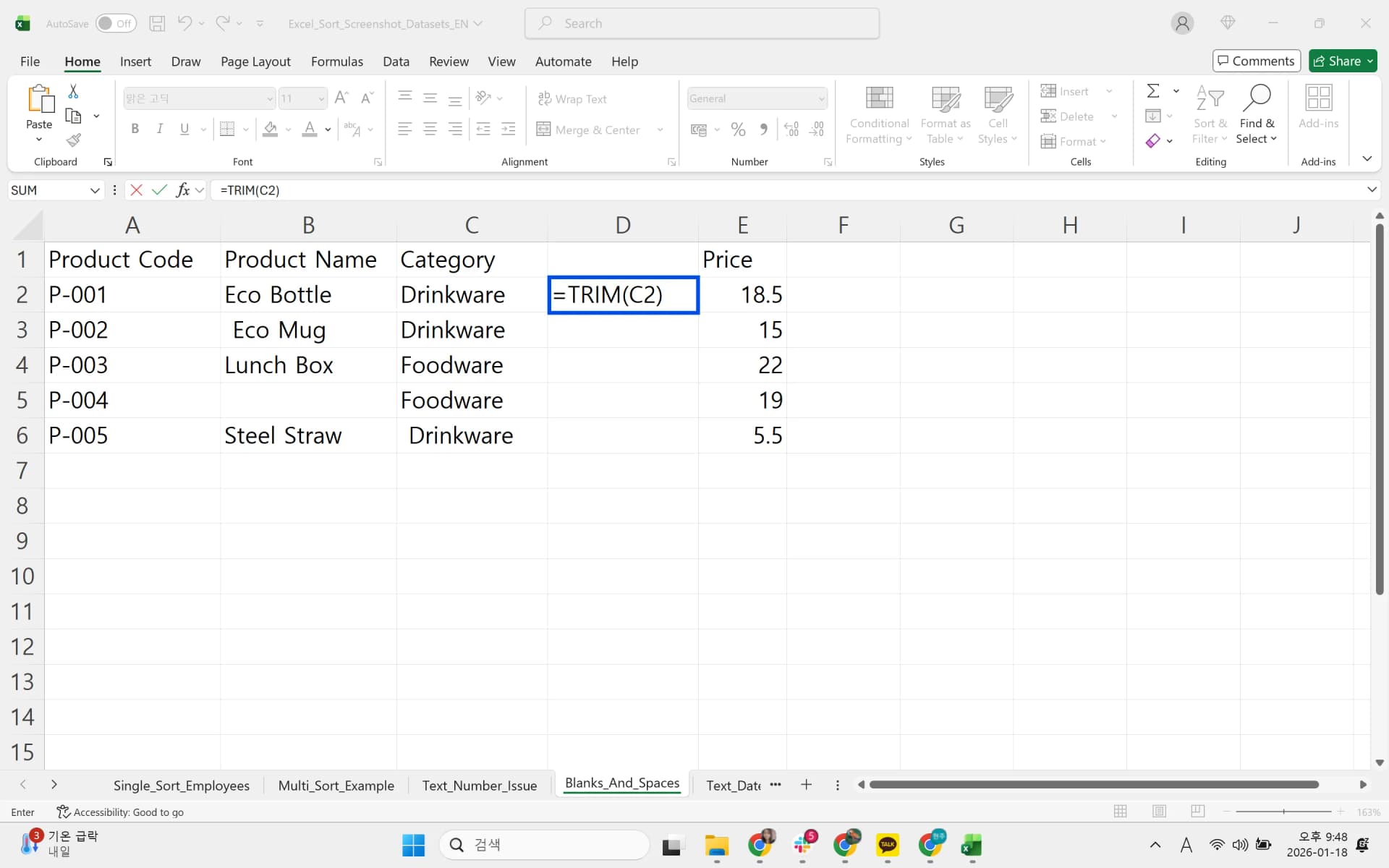
Method 1: Using the TRIM Function
- In a new column, enter
=TRIM(target_cell)and fill down. - Copy the results and Paste Values into the original column.
- Delete the helper column and sort again.
Method 2: Using Find and Replace
- Press Ctrl + H to open Find and Replace.
- Enter two spaces in Find what and one space in Replace with.
- Run the replacement and then sort the data again.
Excel Sorting Frequently Asked Questions
Q. What is the most common reason Excel sorting does not work?
The most common cause is numbers stored as text, which leads to incorrect alphabetical sorting such as 1, 10, 2, 20. Merged cells and incorrect range selection are also frequent reasons Excel sorting fails.
Q. How do I sort numbers that are stored as text?
Convert text-formatted numbers to numeric values first. Use Convert to Number from the warning icon or multiply by 1 using Paste Special before sorting.
Q. How can I sort by multiple criteria at the same time?
Click Sort on the Data tab to open the Custom Sort dialog. Use Add Level to define secondary and tertiary criteria, allowing you to sort multiple columns in Excel in one operation.

Work More Efficiently in Excel with Cicely AI
Sorting problems often require multiple checks. You may need to fix text-formatted numbers, adjust ranges, and verify multi-level sorting rules before the results look correct.
Cicely AI is a desktop-native AI coworker built for spreadsheet workflows. Instead of manually reviewing each setting, you can describe what you need in plain English, such as:
"Sort this table by department and then by date."
"Fix numbers that are sorting as 1, 10, 2."
Cicely reviews your worksheet structure and guides you through the correct setup. Everything runs locally on your PC. No file uploads. No browser tools.