Blog
How to Unprotect Excel Sheet When Password Forgotten or Access Denied
 Mike Yi · Feb 1, 2026
When creating spreadsheets in Excel, you use sheet protection to prevent accidental formula changes. However, when you try to remove protection, even with the correct password, the sheet may not unlock, or the Unprotect button may appear grayed out.
Understanding Excel Sheet Protection vs. File Protection
The first reason you can't unprotect Excel sheet is confusing protection types. Excel has three different protection layers, and each one requires a different approach to remove it.
Sheet Protection vs. Workbook Protection
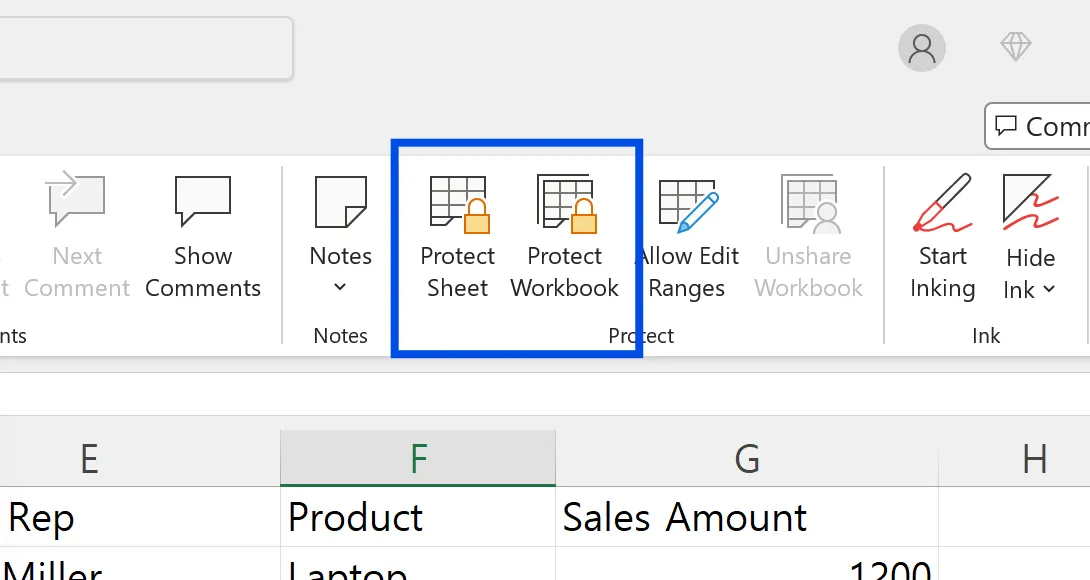
Sheet protection restricts cell editing or format changes within a sheet. Workbook protection prevents adding, deleting, or moving sheets. File encryption requires a password to open the file.
If the file won't open, it's encrypted. If you can't add/delete sheets, it's workbook protection. If only cells are blocked, it's sheet protection.
Comparing Unlock Methods
To unprotect Excel sheet, go to Review → Unprotect Sheet. For workbook protection, use Review → Protect Workbook. For file encryption, go to File → Info → Protect Workbook → Encrypt with Password and delete the password.
When the unlock button is grayed out or files open read-only, check file permissions or sharing settings first.
Why You Can't Unprotect Excel Sheet Even with the Password
Sometimes you know the password but still can't unprotect Excel sheet. The most common cause is not checking Caps Lock or keyboard language before entering the password.
When Unprotect Sheet Button is Grayed Out
The button to unlock Excel protected sheet appears gray when files open in read-only mode. If you received the file via OneDrive or SharePoint with view-only permission, or if workbook protection is applied first, sheet unlock may be restricted.
Save the file locally with "Save As" and reopen to resolve this excel permission issue.
Password Entered But Still Can't Unprotect Excel Sheet
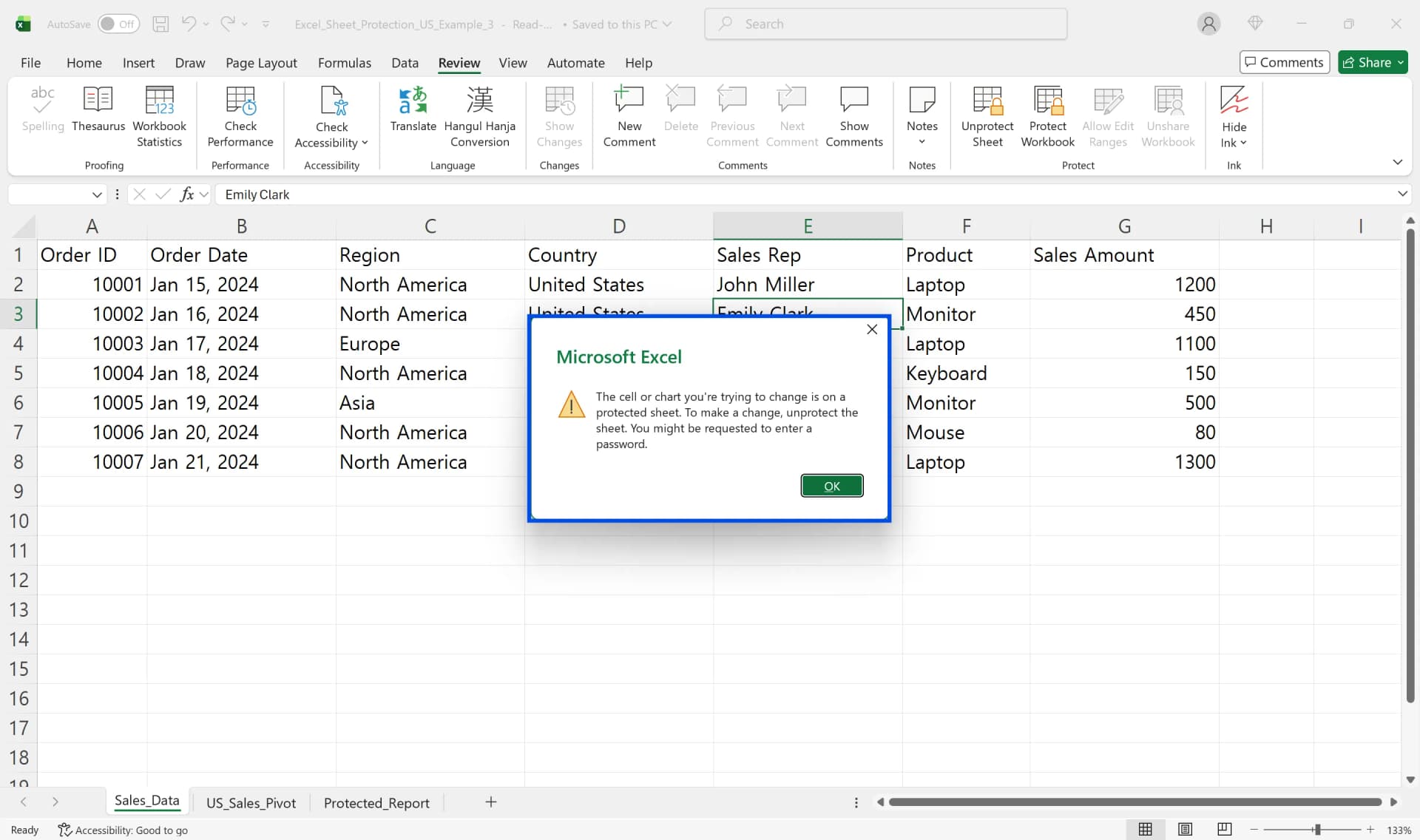
If entering the password does not remove protection, consider other factors such as file corruption or version conflicts. When programs crash during auto-save or cloud sync conflicts damage files, protection information isn't recognized. Restore from OneDrive or SharePoint version history.
In corporate environments, data loss prevention (DLP) tools or rights management settings may restrict editing regardless of sheet protection status.
Excel Version Compatibility Issues
Older .xls and newer .xlsx files use different encryption. When switching between Excel Online and desktop, you may not be able to unprotect Excel sheet. Save in latest xlsx format with "Save As" and retry.
How to Unlock Excel Protected Sheet When Password is Forgotten
If you have forgotten a sheet protection password, one commonly discussed approach involves modifying the internal file structure of the workbook. This should only be considered for files you own or are authorized to manage.
ZIP File Structure Method (For Authorized Recovery Cases Only)
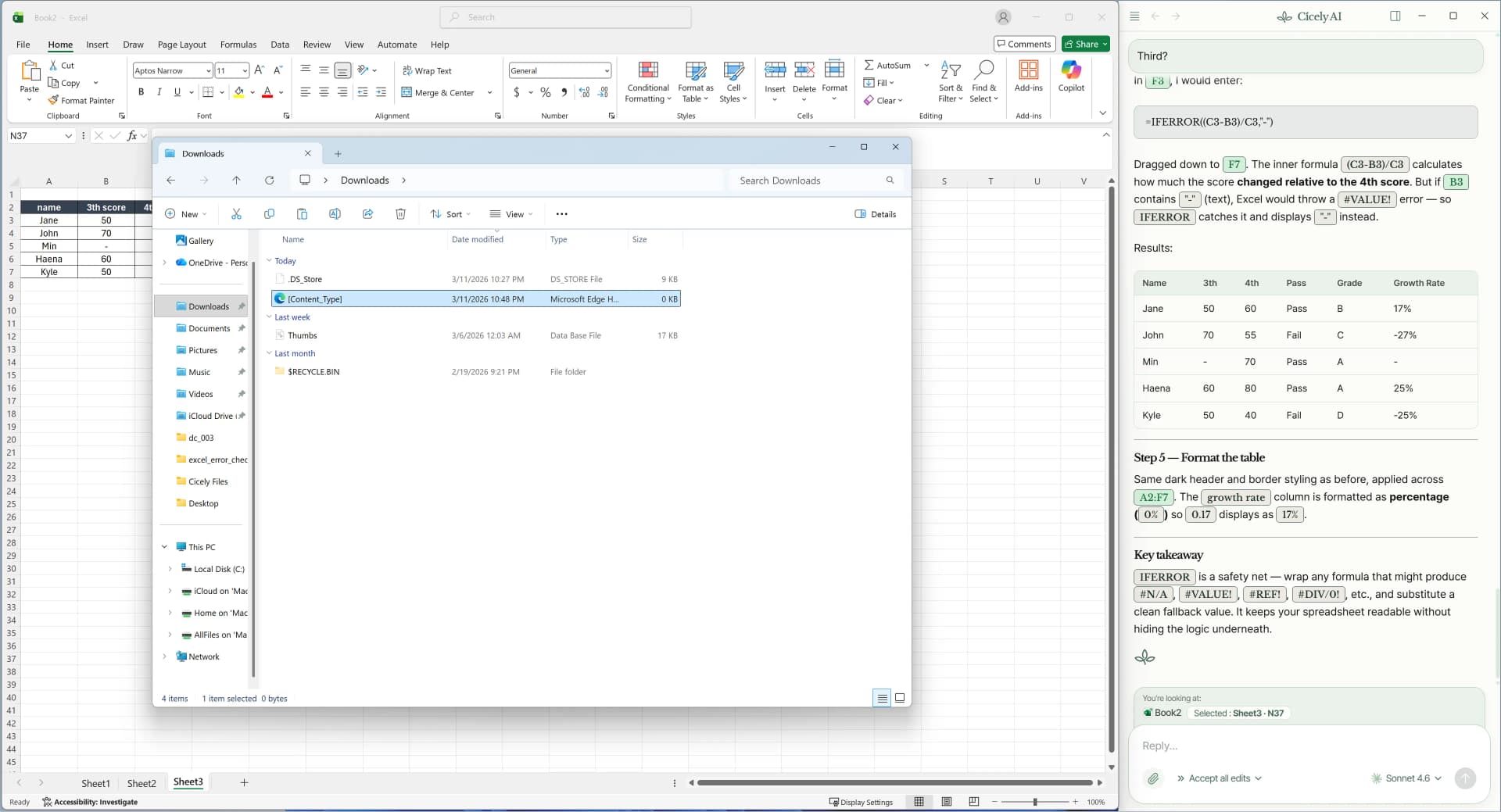
.xlsx files are ZIP-compressed XML files. In certain authorized recovery situations, you can:
- Create a backup of the file.
- Change the file extension from .xlsx to .zip.
- Extract the contents.
- Open the relevant worksheet XML file inside the
xl/worksheetsfolder. - Locate the
<sheetProtection>tag within the XML structure. - Remove that tag.
- Recompress the folder and restore the extension to .xlsx.
This method affects sheet-level protection only. It does not bypass full file encryption. Always confirm that you are permitted to modify the file before using this approach.
When Shared Excel Files Block Sheet Protection Due to Permissions
OneDrive or SharePoint shared files have both file permissions and sheet protection working simultaneously. Even with the password, you can't unprotect Excel workbook without edit permissions on the file itself.
OneDrive/SharePoint Shared File Permissions
Shared file permissions are "view only" or "can edit." View-only links disable the button to unprotect Excel sheet. Even with edit permission, "Mark as Final" restrictions limit editing features.
In read-only mode, you can view but not modify. Download to your PC and save locally to unlock Excel protected sheet.
Steps to Unprotect After Removing Sharing
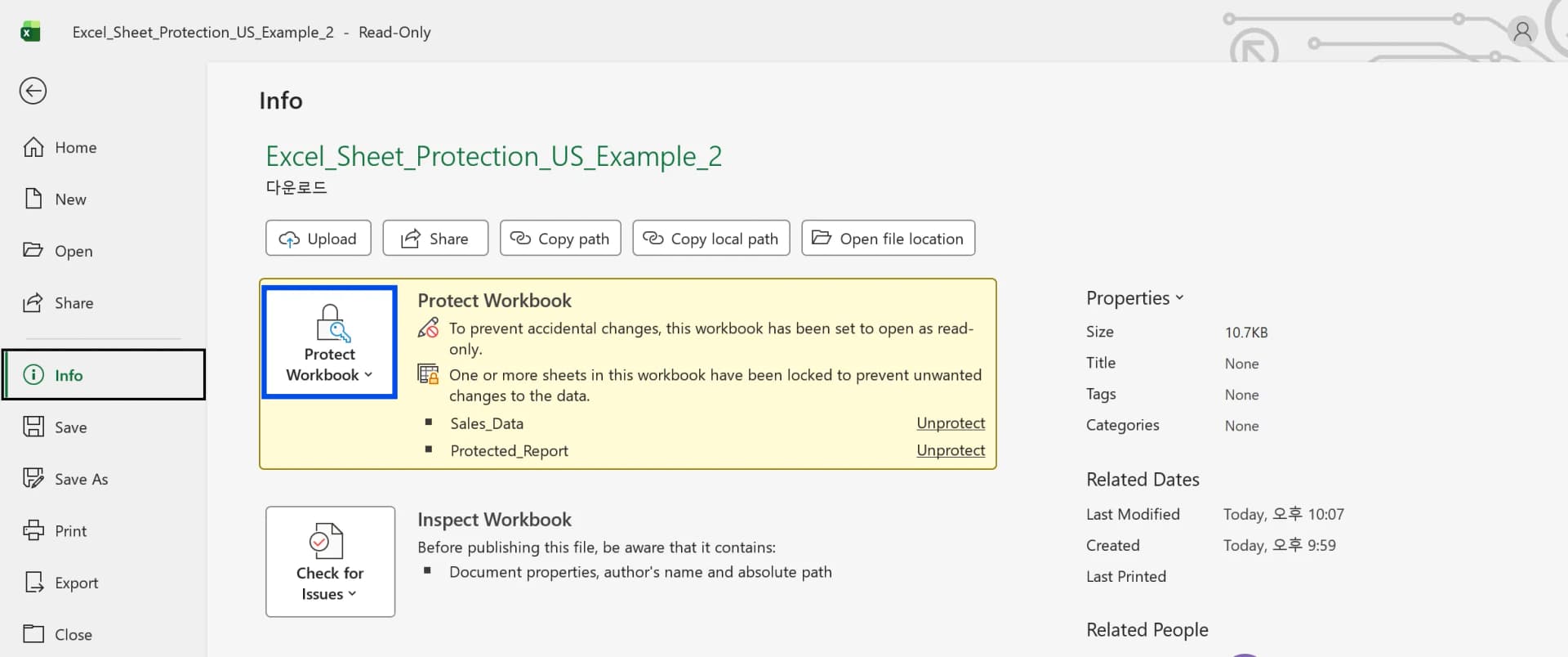
To unlock Excel protected sheet from shared files, first stop sharing or secure edit permissions, then save locally. Check workbook protection in File → Info. If active, unprotect Excel workbook structure first, then execute Review → Unprotect Sheet for each sheet.
When Macros and External Links Affect How to Unprotect Excel Sheet
Macro-enabled files (xlsm) or external data connections can complicate efforts to unlock Excel protected sheet due to security settings. If macro security is "Disable all macros," auto-executing unlock macros won't work. Check File → Options → Trust Center → Trust Center Settings.
PivotTables or external queries may re-lock areas when refreshing. Enable "Allow using PivotTable" and "Allow using AutoFilter" in sheet protection settings for data refresh while protected.
Best Practices for Managing Excel Sheet Protection
Excel sheet protection prevents mistakes but isn't security for confidential data. Use file encryption or access control for sensitive information.
Password Setting Precautions
Simple passwords can be bypassed with ZIP methods. For important files, use File → Info → Protect Workbook → Encrypt with Password to protect the file itself and follow organizational password policies to prevent issues when you need to unprotect Excel sheet later.
Setting Partial Cell Editing
Excel sheet protection's key is selective locking. All cells lock by default, but unlock only cells users should edit before applying protection. Select the entire sheet, check lock status in Format Cells → Protection tab, then select input areas and unlock them. Apply sheet protection via Review → Protect Sheet to create a template with only input cells editable.
Frequently Asked Questions (FAQ)
Q1. Can I unlock Excel protected sheet without password?
You can bypass sheet protection using ZIP file structure modification when excel sheet password forgotten. However, only use this on files you own or have legitimate rights to. Always ensure you have the right to modify the file before attempting any recovery method.
Q2. Why can't I unlock Excel protected sheet in shared files?
OneDrive or SharePoint shared files have file permissions and sheet protection working together. With view-only permissions, the button to unprotect Excel sheet is disabled. Request edit permission or save locally before attempting to unlock Excel protected sheet. This excel permission issue requires permission verification first.
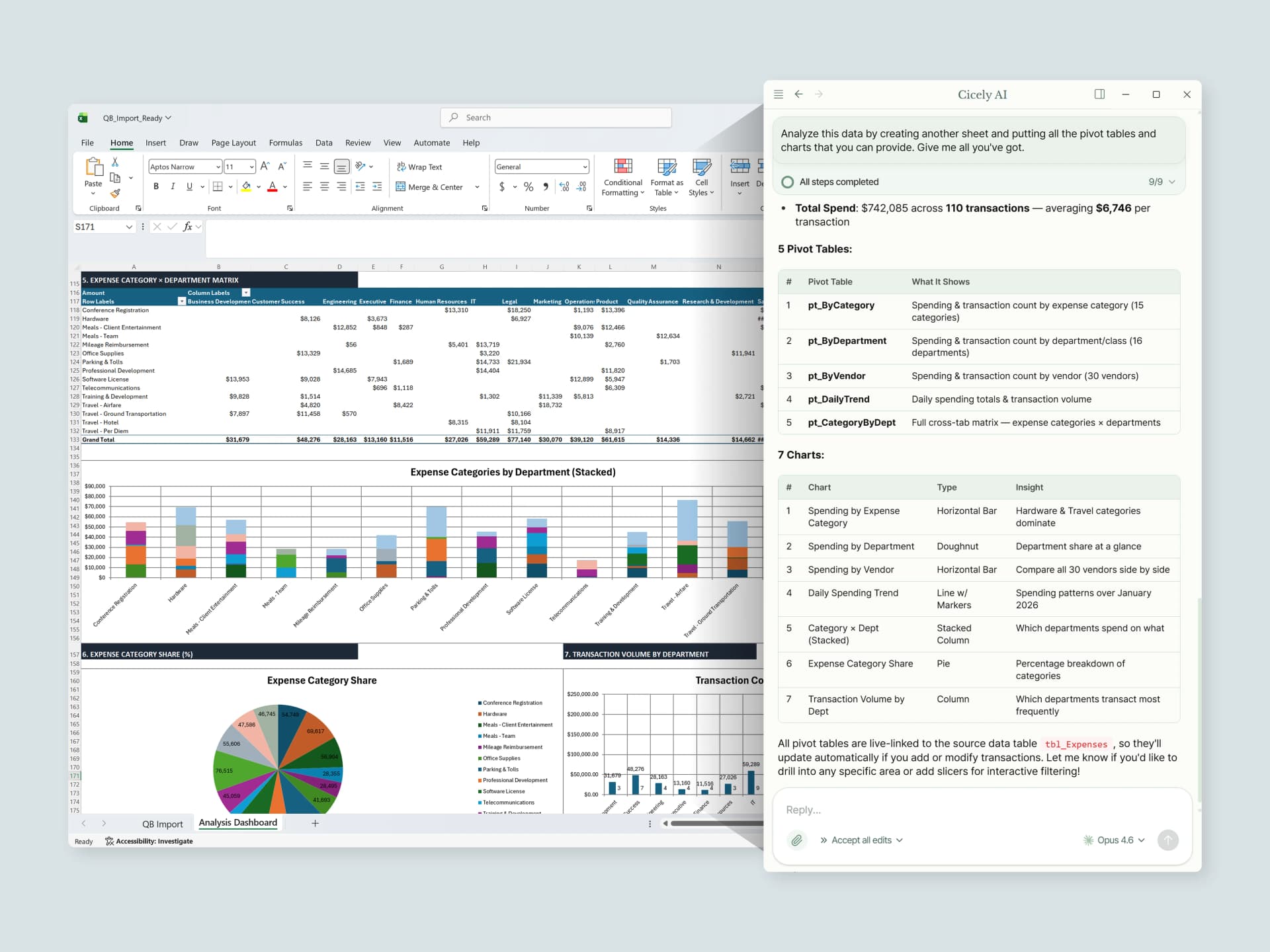
Work More Efficiently in Excel with Cicely AI
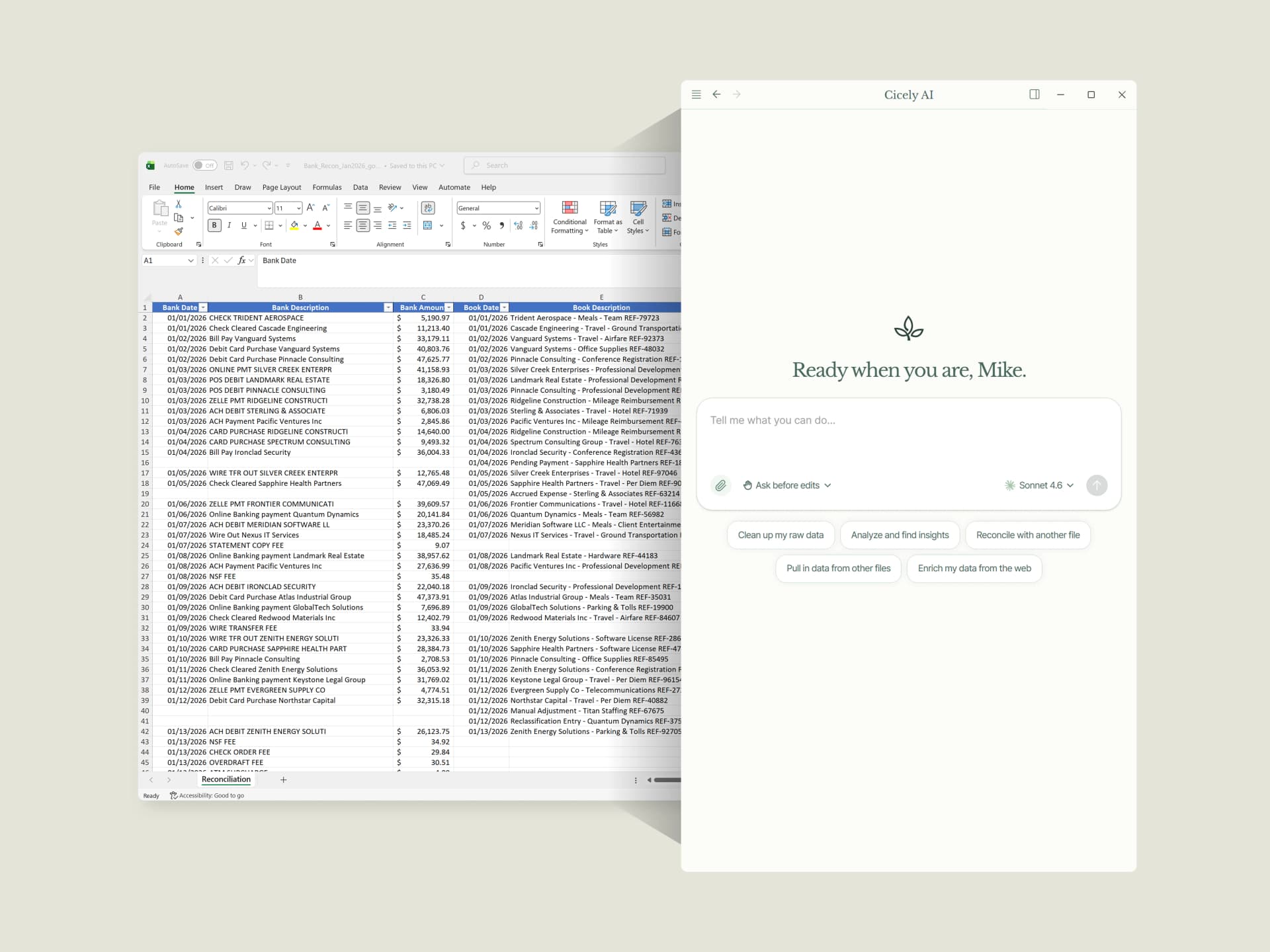
Managing sheet protection, passwords, and permissions can quickly become confusing, especially in shared environments.
Cicely AI is a desktop-native AI coworker built for spreadsheet workflows. Instead of manually checking each protection setting, you can describe what you need in plain English, such as:
"Unlock this sheet but keep formulas protected."
"Check why the Unprotect button is grayed out."
"Apply sheet protection and allow editing only in column A."
Cicely helps you review protection settings and guides you through the correct steps based on your workbook structure. Everything runs locally on your PC. No uploads. No browser tools.