



Microsoft Excel is widely used for creating documents, organizing data, and performing basic analysis. For many people, it is an essential part of their daily work.
Excel normally requires a paid license through Microsoft 365. This usually means either a subscription fee or a bundled package. For users who only need Excel occasionally or for personal tasks, this cost can feel unnecessary.
What many users overlook is that Microsoft actually provides several official ways to use Excel for free. These options are legal, safe, and suitable for different usage scenarios.
This article shows you how to use Excel for free, explains what each option supports, and outlines the limitations you should expect.
3 Official Ways to Use Excel for Free
Microsoft does not offer a permanently free desktop version of Excel. However, there are three official methods that allow free access under specific conditions.
Each option is designed for a different type of use. Understanding these differences helps you choose the right option based on how you use Excel.
Microsoft 365 Web Version: How to Use Excel for Free Online
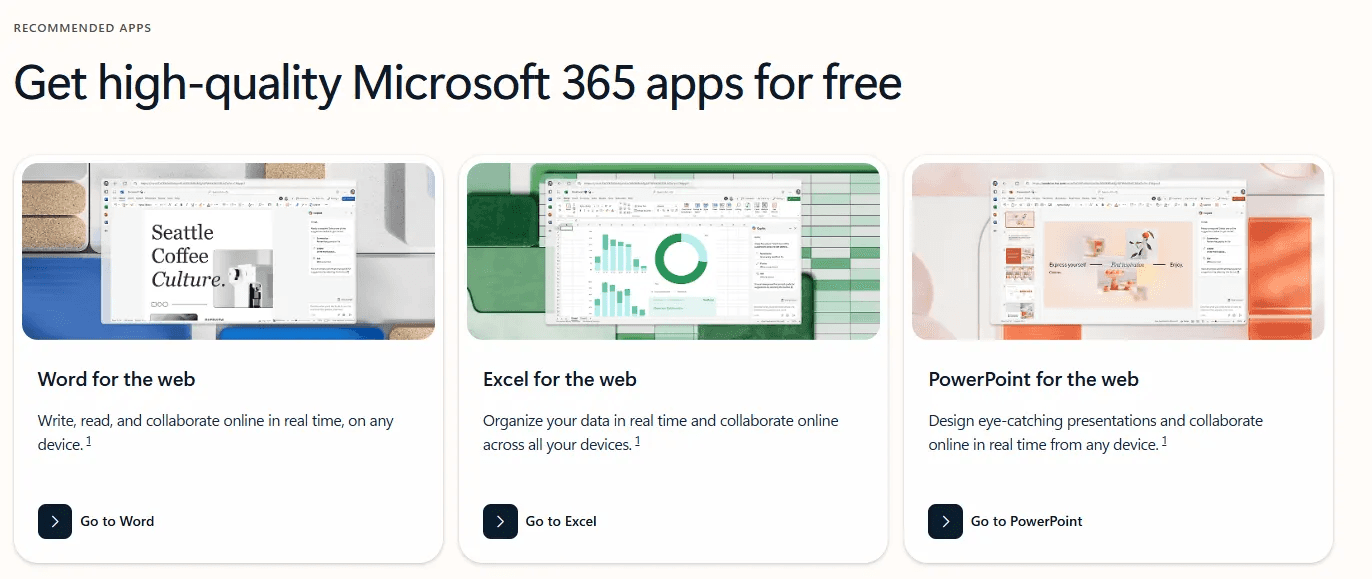
Go to Microsoft 365 Web (Free Version)
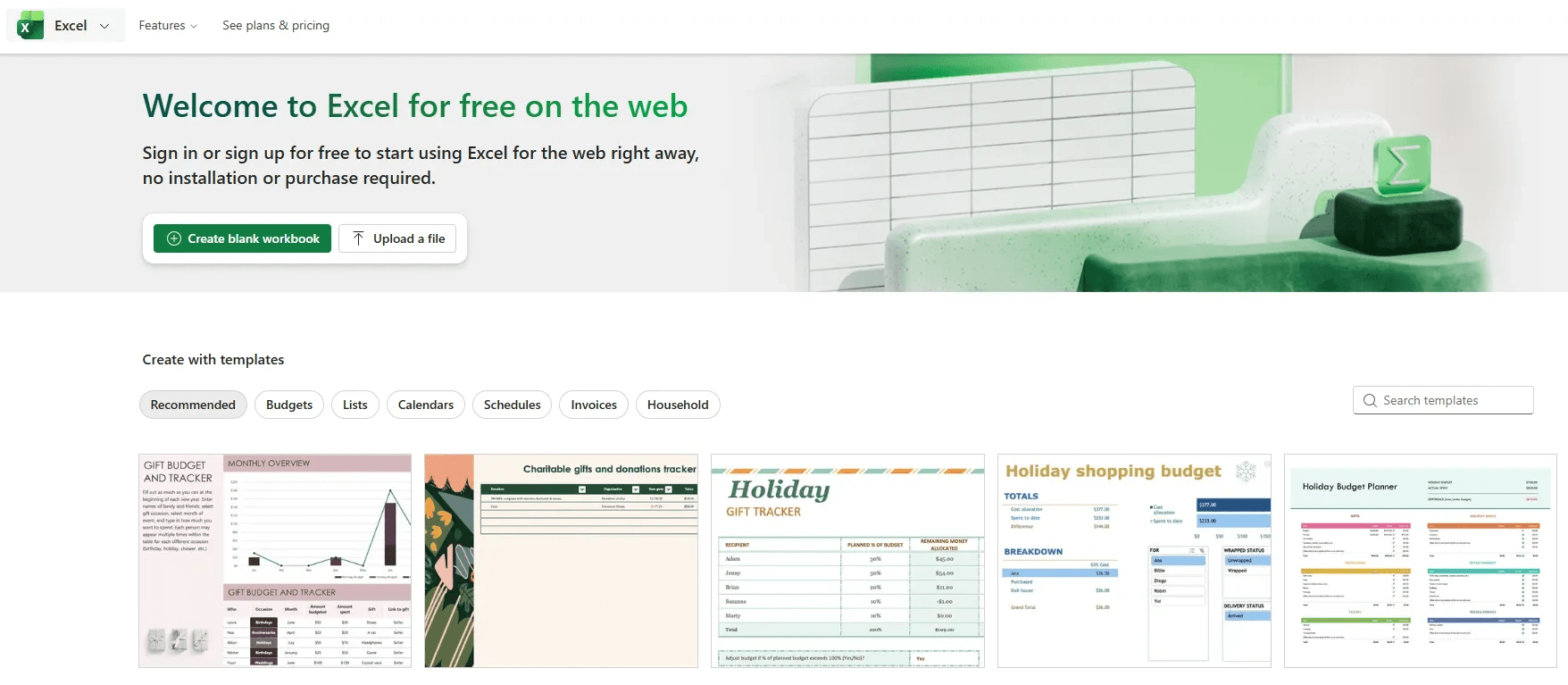
The Microsoft 365 web version is the most common way to use Excel for free.
This version runs directly in your web browser and does not require any installation. After signing in with a Microsoft account, users can create spreadsheets, enter formulas, upload files, and save documents online.
For basic tasks like simple calculations, lists, or personal record-keeping, the web version is usually sufficient. It is also useful when you need quick access to Excel from different devices.
However, the web version comes with clear limitations. VBA macros are not supported, advanced features are restricted, and large datasets may not perform well. An internet connection is always required.
Excel Free Trial: How to Use the Full Version of Excel for Free
Another official way to use Excel for free is through the Excel free trial.
The free trial provides temporary access to the full desktop version of Excel. During this period, all features are available, including macros, advanced formulas, and large data processing.
This option works well for users who want to test Excel in a real work environment before committing to a paid subscription. It allows you to check compatibility with existing files and workflows.
The main limitation is time. Once the free trial ends, Excel becomes unavailable unless a paid plan is activated. Users should also check billing settings to avoid unexpected charges.
Excel Mobile Apps: How to Use Excel for Free on Mobile Devices
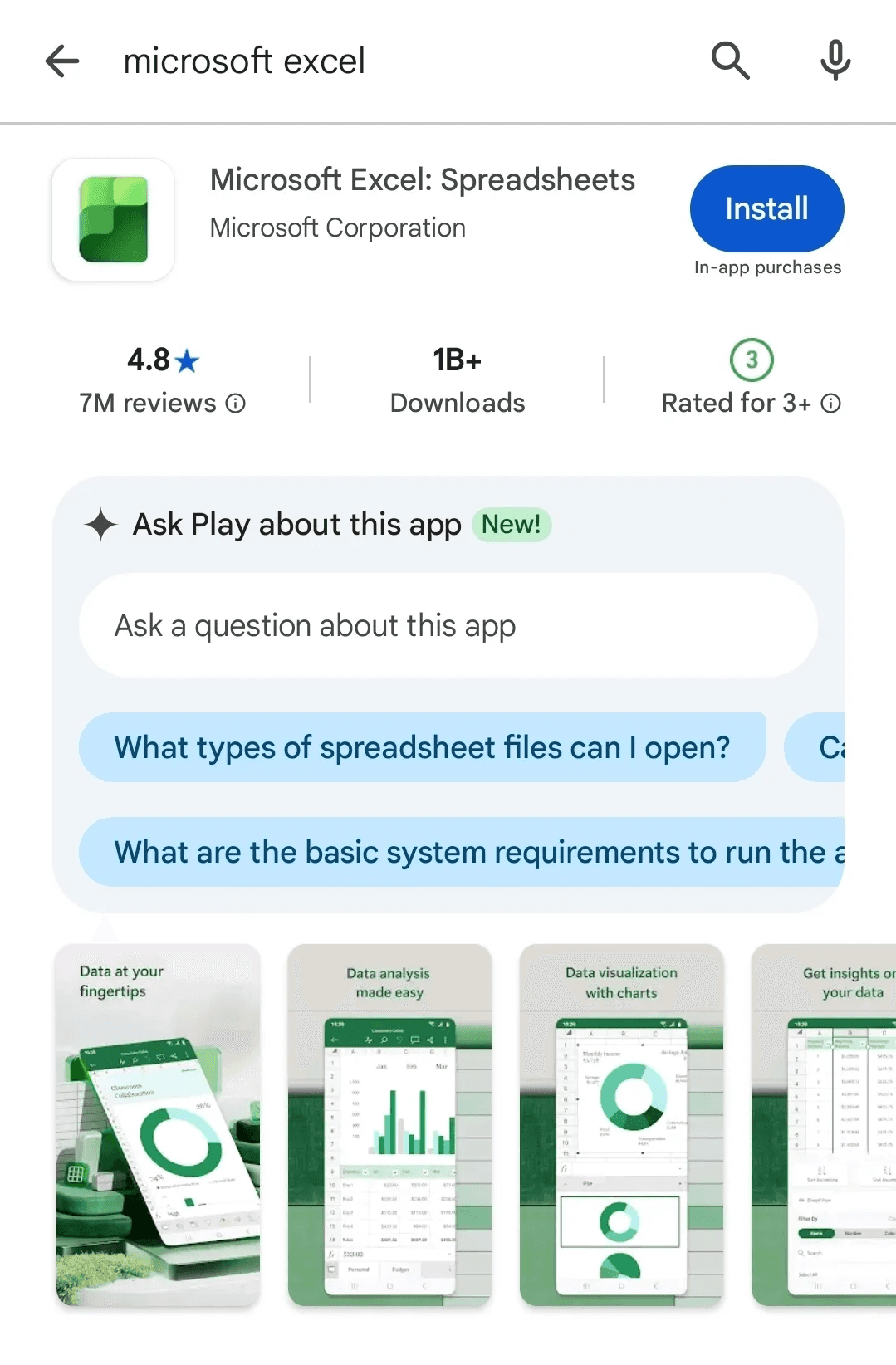
Excel is also available as a free mobile app on iOS and Android devices.
The mobile app allows users to open Excel files, make basic edits, and adjust simple formulas. It is designed for reviewing documents and handling small updates while away from a computer.
While convenient, the mobile version is not designed for full-scale spreadsheet work. Screen size limits productivity, and advanced features such as macros are not supported.
For most users, the mobile app works best as a supplementary tool rather than a primary Excel solution.
Common Limitations When Using Free Excel Versions
Free Excel options often work well for simple tasks. As work becomes more complex, limitations become more noticeable.
Users commonly run into issues such as macros not running, automation features being unavailable, or formatting differences when sharing files with desktop users.
These limitations can affect efficiency, especially for tasks involving repeated reports or structured workflows.
Risks of Using Unofficial Free Excel Downloads
The difference between free and paid Excel is not only about features. It also affects reliability and compliance.
Many websites claim to offer “free Excel downloads” or “genuine activation files.” In most cases, these files are cracked versions of Excel and are not legally licensed.
Using unofficial software can lead to security risks and legal issues, particularly in business environments. For this reason, only Microsoft-provided options should be considered.
What to Check Before Using Excel for Free
Before choosing a free Excel option, confirm that it is officially provided by Microsoft.
It is also important to understand whether you are using a web version, a free trial, or a mobile app.
Users should check usage limitations, internet requirements, and trial expiration conditions in advance. Claims such as “permanent free installation” should be treated with caution.
Free Excel is best viewed as a temporary or limited solution, not a replacement for professional workflows.
Who Should Use Free Excel
Good for:
Personal use with basic spreadsheet needs
Short-term testing or trials
Tasks without macros or automation
Not good for:
Task automation needs
Frequent repetitive work and reports
For professional work, free Excel might increase time spent and risk.
Improving Spreadsheet Workflows Beyond Free Excel
Free Excel handles basic tasks. For automation, formula building, and efficient workflows, other tools exist.
Cicely AI is one option. It automates document work through natural language commands - formatting, data cleanup, report generation.
Try our AI Coworker for Excel
Free Excel works well for simple spreadsheets. For more complex workflows that require automation, tools designed for that purpose are often a better fit.
VLOOKUP connects data. Automation tools connect entire workflows.
If you're spending hours on repetitive Excel tasks beyond basic formulas, automation reduces that time significantly.